





















































































































































































































































Published Jun 11, 2026 .3 min read

  1. How to screen record on vivo
  2. How to customise vivo screen recording settings
  3. How to stop a screen recording and find your saved videos on vivo
  4. Shop smart with Easy EMIs
  5. FAQs

Screen recording on a vivo phone is one of the most useful everyday features, yet many users do not realise their device already has a powerful screen recorder built right into the system. Whether you want to capture a video call, save a gaming highlight, record a tutorial for a friend, or keep a copy of an important on-screen step, vivo's Super Screen Recording tool lets you do it in just a few taps, without installing any third-party app. It works smoothly across vivo, iQOO, and Funtouch OS / OriginOS devices, giving you a clean, high-quality recording every time.


Do not worry about paying the entire cost of your next vivo smartphone at once. Pay in EMIs, as you might qualify for a pre-approved loan from Bajaj Finance to buy your desired device on Easy EMIs. Check your loan eligibility and keep shopping. Learn more about the latest mobiles on Bajaj Mall or visit one of 1.5 lakh+ partner stores across 4,000+ cities. Shop on Easy EMIs from Bajaj Finance, with repayment options from 3 months to 60 months. Enjoy benefits like zero down payment on select products.
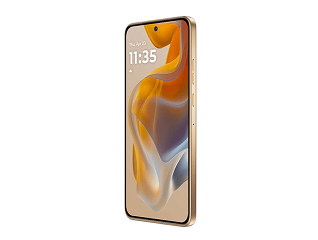

How to screen record on vivo - 2 easy methods

To screen record on a vivo phone, swipe down from the top of the screen to open the Control Centre, tap the Screen Recording (or Super Screen Recording) icon, adjust your audio and video settings if needed, and tap Start. After a short countdown, recording begins. To stop recording, tap the red Stop button or the recording notification. The video is automatically saved in the Gallery or Albums app.


Method 1: Screen record using the Control Centre


The Control Centre provides the quickest way to start a screen recording on most vivo phones running Funtouch OS.


Quick steps:


  1. Unlock your vivo phone and open the screen you want to record.
  2. Swipe down from the top of the screen to open the Control Centre.
  3. Tap the Screen Recording or Super Screen Recording icon.
  4. If the icon is not visible, tap the Edit or Pencil icon and add it to the quick settings panel.
  5. Tap the Screen Recording icon to begin.
  6. Wait for the countdown to finish.
  7. Use your phone as normal while recording.
  8. Tap the floating Stop button or the recording notification to end the recording.

The recorded video is saved automatically in the Gallery or Albums app, usually inside the Screen Recording folder.


Method 2: Screen record with audio


vivo phones allow you to record screen activity along with system audio, microphone audio, or both. This is useful for tutorials, gameplay recordings, and presentations.


Quick steps:


  1. Open the Control Centre.
  2. Tap and hold the Screen Recording icon to access recording settings.
  3. Find the Sound source or Record sound option.
  4. Select your preferred audio source:
    • Mute: Records video only without audio.
    • Microphone: Records your voice and surrounding sounds.
    • Internal/System audio: Records audio playing on the phone.
    • Microphone + Internal audio: Records both voice and device audio (available on supported models).
  5. Return to the recording screen and tap Start.

Tip: For better voice quality, record in a quiet environment and avoid covering the microphone while holding the phone.

How to customise vivo screen recording settings?

Before you begin recording, it is a good idea to adjust a few screen recording settings to ensure the video quality matches your needs. You can access these options by opening Settings and searching for Screen Recording, or by tapping and holding the Screen Recording icon in the Control Centre.


Resolution and video quality


Most vivo phones offer multiple recording quality options, such as Standard, HD, and Full HD.

  • Choose High or Full HD for tutorials, gameplay videos, and content you plan to share.
  • Choose Medium or Standard if you want to reduce file size and save storage space.

Higher quality recordings look sharper but consume more storage.


Frame rate


Frame rate determines how smooth your recorded video appears.


  • 60 fps is ideal for gaming and fast-moving content.
  • 30 fps is suitable for app demonstrations, tutorials, and everyday recordings.

Using a lower frame rate can help reduce file size.


Show touches and front camera


These features are especially useful when creating tutorials or walkthrough videos.


  • Enable Show taps or Record touch operations to display where you tap on the screen.
  • On supported vivo models, you can enable the front camera overlay to show your face in a small floating window during recording.


Orientation and recording mode


Choose the screen orientation that best suits the content you are recording.


  • Landscape mode is ideal for games, videos, and presentations.
  • Portrait mode works well for social media apps, messaging apps, and vertical content.

Selecting the correct orientation before recording helps avoid editing or cropping later.

How to stop a screen recording and find your saved videos on vivo?

Stopping a screen recording is quick and straightforward. Once you finish recording, the video is automatically saved and ready to view or share.


Quick steps:


  1. Tap the floating red Stop button on the screen, or swipe down and tap the recording notification.
  2. Wait for the recording to finish processing.
  3. Open the Gallery or Albums app.
  4. Go to the Screen Recording or Screenshots and recordings folder.
  5. View, edit, share, or delete the recording as needed.

Tip: High-quality screen recordings can take up significant storage space. Consider moving important recordings to cloud storage or deleting them after sharing.


Tips for better screen recording quality on vivo phones


Follow these tips to create smoother and clearer screen recordings:


  • Close background apps before recording to reduce lag and improve performance.
  • Enable Do Not Disturb mode to prevent notifications from appearing in the video.
  • Ensure you have enough free storage space before starting a long recording.
  • Keep your phone charged above 30% for extended recording sessions.
  • Use landscape mode for games and videos, and portrait mode for social media or messaging apps.
  • Record a short test clip first to verify audio and video settings.


Shop for a new vivo phone on Easy EMIs

Newer vivo phones come with faster processors, larger batteries, and improved displays that make screen recording smoother and the final videos sharper. If your current device struggles with lag during recording, upgrading to a recent model can make a noticeable difference. The table below shows popular vivo phones you can buy on Easy EMIs from Bajaj Finserv.


vivo modelKey highlightsPrice in India (starting)
vivo V70Snapdragon 7 Gen 4, 50MP front camera, 6500 mAh batteryRs. 45,999
vivo V70 EliteSnapdragon 8s Gen 3, 90W flash charging, 6.59-inch AMOLEDRs. 45,999
vivo T-series 5GSmooth AMOLED display, large battery, value-focusedRs. 15,999
vivo Y-seriesReliable everyday performance, long battery lifeRs. 11,999
iQOO (by vivo)Gaming-focused performance and high refresh-rate displayRs. 19,999

Disclaimer: Prices are subject to change. Please check the official website for the most accurate and up-to-date information. Explore the latest offers from Bajaj Finance and grab the best deals for a premium shopping experience.

Explore vivo phones on Easy EMIs with Bajaj Finserv

Bajaj Finserv puts you in control of your shopping. See if you are eligible for a loan and get instant approval in just a few steps. Once approved, visit any of 1.5 lakh+ partner stores across India. Pick from over 1 million products from 550+ leading brands. Pay in Easy EMIs with 50+ flexible options that fit your budget. Enjoy a fast, seamless, and stress-free shopping experience – with more freedom and more savings.


Ready to bring home a new vivo phone? Check your loan eligibility now and shop the latest vivo mobile phones on Easy EMIs.


Shop smart with Easy EMIs

Bajaj Finance puts you in control of your shopping. See if you are eligible for a loan and get instant approval in just a few steps. Once approved, go to any of 1.5 lakh+ partner stores across India. Pick from over 1 million products from 550+ leading brands. Pay in Easy EMIs with 50+ flexible options that fit your budget. Enjoy a fast, seamless, and stress-free shopping experience—with more freedom and more savings.

Why use the Smart Savings Calculator

Bajaj Finance's Smart Savings Calculator helps you unlock maximum savings every time you shop at partner stores. It brings together all available brand, dealer, and scheme offers, so you can see your total savings instantly and shop smarter with Easy EMIs.


  • Dealer offers: Grab exclusive in-store deals at over 1.5 lakh partner stores across India.
  • Brand offers: Access limited-time discounts from top brands across electronics and appliances.
  • Bajaj offers: Unlock exclusive Bajaj Finance deals available only to our customers.
  • Scheme offers: Take advantage of time-sensitive offers on select EMI schemes.


Explore more mobile phones


Mobiles by brands


vivo mobileLAVA phonesiQOO mobiles
TECNO mobilesOnePlus mobilesSamsung mobiles
realme mobilesNokia mobilesXiaomi mobiles
Infinix mobilesmotorola mobiles 

Mobiles by features


10000 mAh battery mobiles120 W fast charging mobilesXiaomi curved display mobiles
200MP camera mobiles16GB RAM mobilesFlagship mobiles
Dolby Atmos phonesDual stereo speaker mobilesMobiles with optical zoom
Ultra-wide camera phonesSony IMX sensor camera mobiles 

Mobiles by budget


Mobiles under Rs. 10,000Mobiles under Rs. 15,000Mobiles under Rs. 20,000
Mobiles under Rs. 25,000Mobiles under Rs. 30,000Mobiles under Rs. 35,000
Mobiles under Rs. 50,000Mobiles under Rs. 60,000Mobiles under Rs. 80,000

5G mobiles by brands


OPPO 5G mobilesrealme 5G mobilesNokia 5G mobiles
motorola 5G mobilesSamsung 5G mobilesMi 5G mobiles
vivo 5G mobilesGoogle 5G mobilesiQOO 5G mobiles

5G mobiles by budget


5G mobiles under Rs. 15,0005G mobiles under Rs. 20,0005G mobiles under Rs. 25,000
5G mobiles under Rs. 30,0005G mobiles under Rs. 40,000 

Brands by budget (Rs. 20,000)


vivo mobiles under Rs. 20,000Samsung mobiles under Rs. 20,000OnePlus mobiles under Rs. 20,000
iQOO mobiles under Rs. 20,000Xiaomi mobiles under Rs. 20,000POCO mobiles under Rs. 20,000
Infinix mobiles under Rs. 20,000realme mobiles under Rs. 20,000motorola mobiles under Rs. 20,000
ASUS mobiles under Rs. 20,000  

Frequently asked questions

Does every vivo phone have a built-in screen recorder?

Almost all recent vivo and iQOO phones running Funtouch OS or OriginOS include a built-in screen recorder accessible from the Control Centre. Very old vivo models may not have it, in which case updating the software or using a trusted screen recorder app from the Play Store is the alternative.

Can I buy a vivo phone on EMI?

Yes, you can buy a vivo phone on Easy EMIs using the Bajaj Finance Insta EMI Card. Check your eligibility in just a few clicks and enjoy the convenience of converting your purchase into affordable monthly instalments.

How do I screen record on vivo with internal sound?

Open the screen recorder settings from the Control Centre, set the sound source to “Internal audio” or “System sound”, and start recording. Note that some apps, such as OTT and banking apps, may block internal audio capture for security reasons.
 

Where are vivo screen recordings saved?

Face unlock works by scanning your facial features using cameras, infrared sensors, or depth‑mapping systems, then comparing them to a securely stored facial model. If the match is close enough, the phone unlocks instantly. Advanced systems use 3D mapping and infrared to improve accuracy and prevent spoofing.

Why does my vivo screen recording have no sound?

The most common reason is that the sound source is set to “Mute”. Change it to Microphone or Internal audio before recording. Certain protected apps may also prevent audio from being captured.
 

Is there a time limit for screen recording on vivo?

vivo does not set a fixed time limit for screen recording. The recording length depends mainly on your available storage and battery, so long sessions are possible if your phone has enough free space and charge.
 

Show More Show Less

Bajaj Finserv App for all your financial needs and goals

Trusted by 50 million+ customers in India, Bajaj Finserv App is a one-stop solution for all your financial needs and goals.
 

You can use the Bajaj Finserv App to:
 

  • Apply for loans online, such as Instant Personal Loan, Home Loan, Business Loan, Gold Loan, and more.
  • Explore and apply for co-branded credit cards online.
  • Invest in fixed deposits and mutual funds on the app.
  • Choose from multiple insurance for your health, motor and even pocket insurance, from various insurance providers.
  • Pay and manage your bills and recharges using the BBPS platform. Use Bajaj Pay and Bajaj Wallet for quick and simple money transfers and transactions.
  • Apply for Insta EMI Card and get a pre-approved limit on the app. Explore over 1 million products on the app that can be purchased from a partner store on Easy EMIs.
  • Shop from over 100+ brand partners that offer a diverse range of products and services.
  • Use specialised tools like EMI calculators, SIP Calculators
  • Check your credit score, download loan statements, and even get quick customer support—all on the app.


Download the Bajaj Finserv App today and experience the convenience of managing your finances on one app.

Disclaimer

1. Bajaj Finance Limited (“BFL”) is a Non-Banking Finance Company (NBFC) and Prepaid Payment Instrument Issuer offering financial services viz., loans, deposits, Bajaj Pay Wallet, Bajaj Pay UPI, bill payments and third-party wealth management products. The details mentioned in the respective product/ service document shall prevail in case of any inconsistency with respect to the information referring to BFL products and services on this page. 

2. All other information, such as, the images, facts, statistics etc. (“information”) that are in addition to the details mentioned in the BFL’s product/ service document and which are being displayed on this page only depicts the summary of the information sourced from the public domain. The said information is neither owned by BFL nor it is to the exclusive knowledge of BFL. There may be inadvertent inaccuracies or typographical errors or delays in updating the said information. Hence, users are advised to independently exercise diligence by verifying complete information, including by consulting experts, if any. Users shall be the sole owner of the decision taken, if any, about suitability of the same.