






























































































































































































































AV on TV stands for Audio-Visual, referring to the input option that lets you connect external devices like set-top boxes, DVD players, or gaming consoles using composite cables. People often search for AV to understand how to switch inputs or connect older devices to modern TVs. Its key advantage is easy compatibility and simple plug-and-play setup, making it useful for basic entertainment needs. For buyers, having AV support ensures flexibility in device connectivity, especially with legacy equipment. You can also make your purchase more budget-friendly by visiting any one of the Bajaj Finserv’s 1.5 lakh partner stores in 4,000 cities in India. Choose your ideal model, pay with Easy EMIs, and enjoy zero down payment on select deals. Simply check your loan eligibility now and bring home your desired product without worrying about overspending.
What is AV on TV? Meaning, Uses, and How It Works
Learn what AV on TV means and how it works for connecting external devices like set-top boxes, DVD players, and gaming consoles. Buy TV on Easy EMIs from Bajaj Finserv.
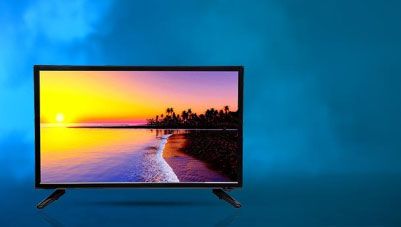
You can get a range of televisions on Easy EMIs. Check your loan eligibility in just a few clicks.
What does AV mean on TV?
A step-by-step guide to understand how AV input works on a TV
AV input on a TV helps you connect external devices like set-top boxes, DVD players, or gaming consoles using simple audio-video cables. Here’s how it works step by step:
- Connect the AV cables: Plug the yellow (video), white, and red (audio) cables into the matching AV ports on your TV and external device.
- Turn on both devices: Switch on your TV and the connected device to establish a signal connection.
- Select AV input mode: Use your TV remote and press the “Input” or “Source” button, then choose “AV” or “Video” from the list.
- Transmit audio and video signals: The external device sends analog audio and video signals through the cables to the TV, which then displays the content.
- Adjust settings if needed: Fine-tune brightness, sound, or picture settings for better viewing experience.
- Enjoy playback: Once connected, you can watch movies, play games, or view content from the external device directly on your TV screen.
This simple system makes AV input a reliable option for connecting older devices without complicated setup.
Types of AV connections
Here are the main types of AV (Audio-Video) connections used in TVs and home entertainment systems:
- Composite AV (RCA): The most common AV connection, using three colour-coded cables—yellow for video and red/white for audio. It transmits analog signals and is widely used for older devices like DVD players and set-top boxes.
- Component AV: Uses three video cables (red, blue, green) plus separate audio cables. It provides better picture quality than composite by separating video signals, making it suitable for higher-resolution analog devices.
- S-Video (Separate Video): Transfers video only through a single round connector, offering improved clarity over composite but without audio support. Separate audio cables are still required.
- SCART (mainly in older TVs): A multi-pin connector that carries both audio and video signals in a single cable, commonly used in older European TV systems.
How to use AV mode on TV
Using AV mode on a TV is simple and helps you connect external devices like DVD players, set-top boxes, or gaming consoles. Follow these steps:
- Connect the AV cables: Plug the yellow (video), red, and white (audio) cables into the matching AV ports on your TV and device.
- Switch on devices: Turn on both your TV and the connected device to establish a signal.
- Press the Input/Source button: Use your TV remote and select “Input” or “Source” to open the list of available modes.
- Choose AV mode: Select “AV” or “Video” from the menu to activate the connection.
- Check display and sound: The TV should now show content from the connected device. If needed, adjust volume or picture settings.
- Start using the device: You can now watch movies, play games, or access content through the connected device.
Devices that support AV input
Here are common devices that support AV (Audio-Video) input or output:
- Set-top boxes: Widely used for cable or satellite TV connections, especially in older or basic TV models.
- DVD and VCD players: One of the most common devices using AV cables for audio and video playback on TVs.
- Gaming consoles: Older gaming systems like PlayStation 2, PlayStation 3, and Xbox 360 support AV connections.
- Camcorders and video cameras: Many traditional cameras use AV output to display recorded videos on TVs.
- Media players and streaming boxes (older models): Some early versions support AV ports along with HDMI.
- VCR players: Used AV connections to play VHS tapes on televisions.
- Audio systems (with AV support): Certain home theatre systems use AV cables for audio and basic video integration.
AV vs HDMI – Key differences
AV and HDMI are both used to connect TVs, speakers, gaming consoles, set-top boxes, and media players, but they work very differently. AV usually refers to older analog cables such as composite RCA connections, while HDMI is a modern digital standard that carries both audio and video through one cable. For current smart TVs and HD content, HDMI is usually the preferred option.
| Feature | AV | HDMI |
|---|---|---|
| Full form | Audio Video | High-Definition Multimedia Interface |
| Signal type | Analog | Digital |
| Video quality | Standard definition | HD, Full HD, 4K, 8K |
| Audio support | Separate stereo audio cables | Audio and video in one cable |
| Cable count | Usually 3 cables | Single cable |
| Ease of setup | Moderate | Easy |
| Best for | Older devices | Modern TVs and devices |
| Gaming performance | Basic | Better refresh rate and low latency |
| Compatibility | VCRs, DVD players, old consoles | TVs, laptops, consoles, soundbars |
| Price | Rs. 100 over Rs. 500 | Rs. 200 over Rs. 2,000 |
Disclaimer: Each model's features, availability, and pricing are subject to change and may vary. For the most accurate and up-to-date information, please visit the official website.
Note: Although you can only use Bajaj Finserv’s financing options to split any purchase above Rs. 5,000 into Easy EMIs, you can always club your product with other electronics and home appliances to meet the minimum amount and enjoy the same benefits.
Before you decide, explore the latest offers. You may find a great deal on a model that matches your needs.
Troubleshooting AV input issues
Here are common steps to troubleshoot AV input issues on a TV:
- Check cable connections: Ensure the yellow, red, and white AV cables are securely plugged into the correct ports on both the TV and the external device. Loose connections often cause no signal or poor display.
- Select the correct input source: Press the “Input” or “Source” button on your remote and make sure “AV” or “Video” mode is selected.
- Inspect cables for damage: Look for bent pins, cuts, or worn-out cables. Replace them if necessary to restore proper signal transmission.
- Restart devices: Turn off both the TV and connected device, unplug them for a few minutes, then restart to reset the connection.
- Test with another device: Connect a different AV-compatible device to check whether the issue is with the TV or the original device.
- Check device output settings: Ensure the external device is set to output video through AV mode if applicable.
- Clean ports gently: Dust or debris in AV ports can interrupt signals, so clean them carefully using a dry cloth or air blower.
Get electronics and appliances on Easy EMIs with Bajaj Finserv
Upgrading your home with the latest electronics and appliances is now easier and more affordable with Bajaj Finserv’s flexible financing options. Follow these steps to get started:
- Explore products on Bajaj Mall: Browse a wide range of electronics and appliances from trusted brands. Compare features like energy ratings, storage capacity, performance settings, and design to choose the right product for your home.
- Visit a partner store: Once you shortlist a model, step into any of Bajaj Finserv’s 1.5 lakh partner stores across 4,000 cities in India. See the product in person, talk to experts, and make a confident decision.
- Choose the Easy EMI Loan option: At checkout, select the Bajaj Finserv Easy EMI Loan. Avail financing of up to Rs. 5 lakh and split the cost into convenient monthly instalments. Some products also come with a zero down payment option.
- Check your loan eligibility online: Plan better by checking your loan eligibility in minutes. Simply enter your mobile number and OTP to know your pre-approved limit.
- Use the EMI Network Card for purchases up to Rs. 3 lakh: Already own the Bajaj Finserv EMI Network Card? Use it for instant, paperless checkout and convert your purchases of up to Rs. 3 lakh into Easy EMIs.
Frequently asked questions
Yes, you can easily bring home your preferred TV using Bajaj Finserv’s Easy EMI options. Whether you already have the EMI Network Card or are new to it, here is how to begin:
- Explore televisions on Bajaj Mall: Choose from a wide range of the latest and most popular models.
- Visit a partner store: Check out the latest TV in person at any of Bajaj Finserv’s 1.5 lakh partner stores across 4,000 cities in India.
- Use your EMI Network Card at checkout: Convert the cost of your TV into Easy EMIs that fit your monthly budget.
- Zero down payment on select models: Take your chosen TV home without paying anything upfront.
If you do not have an EMI Network Card:
Check your Insta EMI Card eligibility and take the first step towards enjoying the affordability and convenience of Easy EMIs.
AV on TV stands for Audio-Visual, referring to the input option that lets you connect external devices like set-top boxes, DVD players, or gaming consoles using composite cables.
AV connections in TVs include composite (basic analog with audio/video), component (better picture via separated signals), S-Video (clearer video but no audio), and SCART (single cable for audio-video in older TVs). Each varies in quality, with component offering the best analog performance.
More articles


More videos

Get an Easy EMI Loan in 3 minutes!
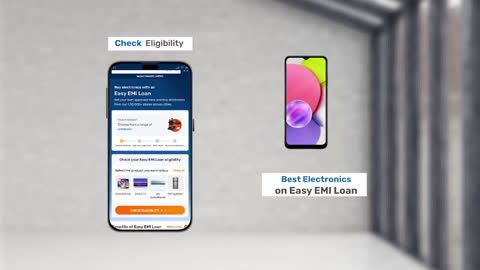
What Are the Benefits of Easy EMI Loan?

Here's All You Need to Know About Easy EMI Loan!
Bajaj Finance app for all your financial needs and goals
Trusted by 50 million+ customers in India, Bajaj Finance App is a one-stop solution for all your financial needs and goals.
You can use the Bajaj Finance App to:
- Apply for loans online, such as Instant Personal Loan, Home Loan, Business Loan, Gold Loan, and more.
- Invest in fixed deposits and mutual funds on the app.
- Choose from multiple insurance for your health, motor and even pocket insurance, from various insurance providers.
- Pay and manage your bills and recharges using the BBPS platform. Use Bajaj Pay and Bajaj Wallet for quick and simple money transfers and transactions.
- Apply for Insta EMI Card and get a pre-qualified limit on the app. Explore over 1 million products on the app that can be purchased from a partner store on Easy EMIs.
- Shop from over 100+ brand partners that offer a diverse range of products and services.
- Use specialised tools like EMI calculators, SIP Calculators
- Check your credit score, download loan statements and even get quick customer support—all on the app.
Download the Bajaj Finance App today and experience the convenience of managing your finances on one app.
Disclaimer
1. Bajaj Finance Limited (“BFL”) is a Non-Banking Finance Company (BAJAJ FINANCE) and Prepaid Payment Instrument Issuer offering financial services viz., loans, deposits, Bajaj Pay Wallet, Bajaj Pay UPI, bill payments and third-party wealth management products. The details mentioned in the respective product/ service document shall prevail in case of any inconsistency with respect to the information referring to BFL products and services on this page.
2. All other information, such as, the images, facts, statistics etc. (“information”) that are in addition to the details mentioned in the BFL’s product/ service document and which are being displayed on this page only depicts the summary of the information sourced from the public domain. The said information is neither owned by BFL nor it is to the exclusive knowledge of BFL. There may be inadvertent inaccuracies or typographical errors or delays in updating the said information. Hence, users are advised to independently exercise diligence by verifying complete information, including by consulting experts, if any. Users shall be the sole owner of the decision taken, if any, about suitability of the same.

Download App
Now request money from your friends and family and make instant payments.

- 1. Apply for Loans: Choose from personal, business, gold loans and more
- 2. Transact: Pay utility bills, use UPI, get FASTag and more
- 3. Shop: Buy over 1 million products on No Cost EMI
- 4. Invest: Buy stocks, mutual funds and invest in FD