




















































































































































































































































Published May 14, 2026 · 3 min read

Understanding TV model numbers and why they matter

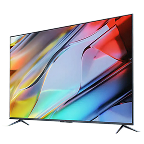
Understanding TV model numbers is essential for anyone looking to compare features, check specifications, or make an informed purchase. A model number reveals key details like screen size, display technology, resolution, and series, helping buyers identify the right TV for their needs. It also makes it easier to find compatible accessories, software updates, or service support. For shoppers, this means better decision-making, value for money, and confidence in choosing the right product.


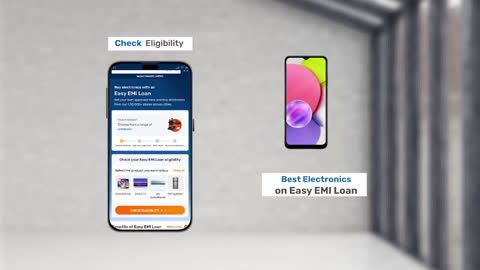
If you are planning to buy a Tv, visit any one of Bajaj Finserv’s 1.5 lakh partner stores in 4,000 cities in India. Choose your ideal model, pay with Easy EMIs, and enjoy zero down payment on select deals. Simply check your loan eligibility now and bring home your desired product without worrying about overspending.

Where to find TV model number on your device

Finding your TV model number is simple once you know where to look. It is usually printed on the device or accessible through on-screen settings, depending on your TV type.


  • Check the back panel: Look for a sticker or label on the rear of the TV that displays the model number, serial number, and other specifications.
  • Inspect side or bottom edges: On slim TVs, the model number label may be placed along the side or bottom frame for a cleaner design.
  • Use the TV settings menu: Go to “Settings” → “Support” → “About” or “Device Information” to find the model number on-screen.
  • Refer to the packaging box: The original TV box usually has the model number printed on it along with other product details.
  • Check the user manual: If you still have the manual, it often lists the model number on the cover or first few pages.

How to check TV model number using the Settings menu

Checking your TV model number through the Settings menu is quick and doesn’t require moving your TV. Follow these simple steps:


  • Turn on your TV: Ensure your TV is powered on and functioning properly.
  • Press the Menu or Settings button: Use your remote control to open the main settings menu.
  • Navigate to “Support” or “About”: Scroll through options like “Support,” “System,” or “About Device,” depending on your TV brand.
  • Select “Device Information”: Look for sections labeled “Device Info,” “Product Info,” or “System Information.”
  • Locate the model number: Your TV model number will be displayed along with other details like serial number and software version.

This method is especially useful for wall-mounted TVs where accessing the back label is difficult.

How to find your TV model number without a remote

If you don’t have your remote, you can still find your TV model number using a few simple methods:


  • Check the back panel: Look for a sticker or label on the rear of the TV. It usually lists the model number, serial number, and other key details.
  • Inspect the side or bottom frame: Some modern TVs place the label along the edges for a cleaner look, so check carefully.
  • Use physical buttons on the TV: Press the built-in buttons (Power/Menu) to access basic on-screen settings. Navigate to “About” or “Device Info” if available.
  • Look at the original packaging: The box your TV came in often has the model number printed clearly.
  • Refer to the user manual or invoice: These documents usually include the model number for identification and warranty purposes.

Difference between TV model number and serial number

Understanding the difference between a TV model number and serial number helps in identifying your device correctly. Both serve different purposes, especially when buying, servicing, or checking warranty details.


FeatureTV Model NumberSerial Number
PurposeIdentifies the product type, features, and specificationsIdentifies a unique unit of a product
UniquenessSame for all units of a specific modelUnique for every individual TV
UsageUsed for comparing models, checking features, and purchasing decisionsUsed for warranty claims, service, and tracking
Information providedIncludes details like screen size, series, resolution, and technologyDoes not reveal product features, only identification
Where to findPrinted on back panel, settings menu, box, or manualPrinted on back panel, warranty card, or invoice
Importance for buyersHelps choose the right TV based on needs and budgetHelps manufacturers and service centers track your specific unit

Using model number for repairs and support

Using your TV model number for repairs and support makes the process faster and more accurate. The model number helps technicians identify the exact specifications of your TV, including screen type, internal components, and compatible parts. This ensures the right spare parts are used, reducing the chances of errors or delays.


When contacting customer support, sharing the model number allows them to provide precise troubleshooting steps, software updates, and user guidance tailored to your specific device. It also helps in checking warranty eligibility and service options quickly.


Additionally, the model number is useful when downloading manuals, firmware updates, or finding compatible accessories online. Overall, keeping your TV model number handy simplifies maintenance, improves service efficiency, and helps extend the life of your device.

How to keep your TV information organised and handy

Keeping your TV information organised makes it easier to access details for repairs, upgrades, or support. Follow these simple steps:


  • Note down key details: Write your TV model number, serial number, and purchase date in a notebook or digital file for quick reference.
  • Save a digital copy: Take clear photos of the back label, invoice, and warranty card, and store them on your phone or cloud storage.
  • Organise documents: Keep the original bill, warranty card, and user manual in a dedicated folder at home.
  • Use your email: Store purchase receipts and product details in your email or mark them as important for easy retrieval.
  • Label files clearly: Name your digital files with the TV brand and model number so you can find them quickly when needed.
  • Update when needed: If you service or replace parts, update your records to keep all information current and accurate.

Get electronics and appliances on Easy EMIs with Bajaj Finserv

Upgrading your home with the latest electronics and appliances is now easier and more affordable with Bajaj Finserv’s flexible financing options. Follow these steps to get started:

  • Explore products on Bajaj Mall: Browse a wide range of electronics and appliances from trusted brands. Compare features like energy ratings, storage capacity, performance settings, and design to choose the right product for your home.
  • Visit a partner store: Once you shortlist a model, step into any of Bajaj Finserv’s 1.5 lakh partner stores across 4,000 cities in India. See the product in person, talk to experts, and make a confident decision.
  • Choose the Easy EMI Loan option: At checkout, select the Bajaj Finserv Easy EMI Loan. Avail financing of up to Rs. 5 lakh and split the cost into convenient monthly instalments. Some products also come with a zero down payment option.
  • Check your loan eligibility online: Plan better by checking your loan eligibility in minutes. Simply enter your mobile number and OTP to know your pre-approved limit.
  • Use the EMI Network Card for purchases up to Rs. 3 lakh: Already own the Bajaj Finserv EMI Network Card? Use it for instant, paperless checkout and convert your purchases of up to Rs. 3 lakh into Easy EMIs.

Frequently asked questions

Can I buy a TV on EMI?

Yes, you can easily bring home your preferred TV using Bajaj Finserv’s Easy EMI options. Whether you already have the EMI Network Card or are new to it, here is how to begin: 
 

  • Explore televisions on Bajaj Mall: Choose from a wide range of the latest and most popular models.
  • Visit a partner store: Check out the latest TV in person at any of Bajaj Finserv’s 1.5 lakh partner stores across 4,000 cities in India.
  • Use your EMI Network Card at checkout: Convert the cost of your TV into Easy EMIs that fit your monthly budget.
  • Zero down payment on select models: Take your chosen TV home without paying anything upfront.

If you do not have an EMI Network Card:
Check your Insta EMI Card eligibility and take the first step towards enjoying the affordability and convenience of Easy EMIs.

How can I find my TV model number?

You can find your TV model number by checking the label on the back panel, navigating to the settings menu under “About” or “Device Information,” or referring to the original packaging, invoice, or user manual for product details.

Where is the model number located on a TV?

The model number is usually located on a sticker at the back of the TV. It may also be found on the side or bottom frame, inside the settings menu, or on the original box and warranty documents.

Can I check TV model number without remote?

Yes, you can check the model number without a remote by inspecting the back panel label, checking the TV frame edges, or using physical buttons on the TV to access basic settings and device information menus.

What is the difference between model number and serial number?

The model number identifies the TV’s type, features, and specifications, while the serial number is a unique code assigned to each unit. The model number helps in buying decisions, while the serial number is used for warranty and service tracking.

Why is TV model number important?

The TV model number helps you identify specifications, compare products, and choose the right accessories. It is also essential for troubleshooting, downloading updates, claiming warranty, and getting accurate customer support or repair services tailored to your device.

Show More Show Less

Bajaj Finserv app for all your financial needs and goals

Trusted by 50 million+ customers in India, Bajaj Finserv App is a one-stop solution for all your financial needs and goals.

You can use the Bajaj Finserv App to:

  • Apply for loans online, such as Instant Personal Loan, Home Loan, Business Loan, Gold Loan, and more.
  • Invest in fixed deposits and mutual funds on the app.
  • Choose from multiple insurance for your health, motor and even pocket insurance, from various insurance providers.
  • Pay and manage your bills and recharges using the BBPS platform. Use Bajaj Pay and Bajaj Wallet for quick and simple money transfers and transactions.
  • Apply for Insta EMI Card and get a pre-qualified limit on the app. Explore over 1 million products on the app that can be purchased from a partner store on Easy EMIs.
  • Shop from over 100+ brand partners that offer a diverse range of products and services.
  • Use specialised tools like EMI calculators, SIP Calculators
  • Check your credit score, download loan statements and even get quick customer support—all on the app.

Download the Bajaj Finserv App today and experience the convenience of managing your finances on one app.

Disclaimer

1. Bajaj Finance Limited (“BFL”) is a Non-Banking Finance Company (BAJAJ FINANCE) and Prepaid Payment Instrument Issuer offering financial services viz., loans, deposits, Bajaj Pay Wallet, Bajaj Pay UPI, bill payments and third-party wealth management products. The details mentioned in the respective product/ service document shall prevail in case of any inconsistency with respect to the information referring to BFL products and services on this page.

2. All other information, such as, the images, facts, statistics etc. (“information”) that are in addition to the details mentioned in the BFL’s product/ service document and which are being displayed on this page only depicts the summary of the information sourced from the public domain. The said information is neither owned by BFL nor it is to the exclusive knowledge of BFL. There may be inadvertent inaccuracies or typographical errors or delays in updating the said information. Hence, users are advised to independently exercise diligence by verifying complete information, including by consulting experts, if any. Users shall be the sole owner of the decision taken, if any, about suitability of the same.