




Published May 25, 2026 .3 min read

  1. How to connect vivo phone to laptop
  2. How to connect a vivo phone to a laptop using a USB cable
  3. How to connect a vivo phone to a laptop wirelessly using vivo EasyShare
  4. Explore vivo phones on Easy EMIs
  5. Why use the Savings Calculator?

Connecting your vivo phone to a laptop is one of the most useful skills for everyday productivity. Whether you want to move photos and videos, take a quick backup, share documents, or mirror your phone screen for a presentation, a stable phone-to-laptop connection saves you time and effort. The good news is that vivo phones support multiple connection methods—so you can pick the one that suits your device, your laptop, and the task at hand.


Planning to upgrade to a newer vivo model with faster transfer speeds and more storage? You do not have to pay the full amount upfront. You may qualify for a pre-approved loan from Bajaj Finance to buy your favourite device on Easy EMIs. Check your loan eligibility and keep shopping. Explore the latest models on Bajaj Mall or visit any of 1.5 lakh+ partner stores across 4,000+ cities. Shop on Easy EMIs with repayment options from 3 months to 60 months and enjoy benefits like zero down payment on select products.

Methods to connect a vivo phone to a laptop

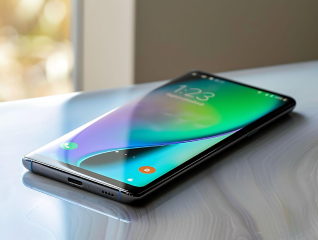
vivo phones can be connected to a laptop in several ways. Each method works best for a specific need—USB is ideal for large file transfers, while wireless options are convenient for quick sharing. Here is a quick comparison to help you choose.
 

MethodBest forWhat you need
USB cableLarge files, full backups, fastest transfervivo data cable + free USB port
vivo EasyShare (Wi-Fi)Wireless file transfer without a cableEasyShare app on phone and PC, same Wi-Fi
BluetoothSmall files like photos or documentsBluetooth enabled on both devices
Screen mirroringShowing your phone screen on the laptopWindows Connect / mirroring app

How to connect a vivo phone to a laptop using a USB cable

A USB connection is the most reliable method and gives you the fastest transfer speeds. Follow these steps:


Use the original USB data cable that came with your vivo phone, as some cables only support charging.


Plug one end into your vivo phone and the other into a working USB port on your laptop.


On your phone, a notification will appear. Tap it and select “File transfer” or “Transferring files” mode.


On your Windows laptop, open “This PC” (or “File Explorer”). Your vivo phone will appear as a connected device.


Double-click the device to open its internal storage, then copy or move files between your phone and laptop.


Once done, safely eject the device before unplugging the cable.


Tip: If your phone only charges and is not detected, change the USB mode from “Charging only” to “File transfer” in the notification panel.
 

How to connect a vivo phone to a laptop wirelessly using vivo EasyShare

vivo EasyShare lets you transfer files between your phone and laptop over Wi-Fi—no cable required. It is ideal when you want a quick, cable-free connection.


Install the vivo EasyShare app on your phone (it is pre-installed on most vivo devices) and download the PC version on your laptop.


Connect both your vivo phone and your laptop to the same Wi-Fi network.


Open EasyShare on both devices and choose the “Connect to PC” or “Phone–PC” option.


Scan the QR code shown on the laptop using the EasyShare app on your phone to pair the two devices.


Once connected, select the photos, videos, or documents you want to transfer and confirm the share.


This method also works well for moving data when you switch to a new vivo phone.
 

How to connect a vivo phone to a laptop via Bluetooth

Bluetooth is best suited for small files. It is slower than USB or Wi-Fi but does not need any extra app.


On your laptop, go to Settings and turn on Bluetooth, then make the laptop discoverable.


On your vivo phone, open Settings, tap Bluetooth, and switch it on.


Select your laptop’s name from the list of available devices on your phone.


Confirm the pairing code shown on both the phone and the laptop.


After pairing, use the “Send via Bluetooth” option to share files between the two devices.
 

How to mirror your vivo phone screen to a laptop

Screen mirroring is useful for presentations, watching content on a bigger display, or sharing your phone screen during a meeting.


On a Windows laptop, open the “Connect” app or enable the wireless display feature from Settings.


On your vivo phone, open Settings and look for “Smart mirroring”, “Cast”, or “Screen mirroring”.


Make sure both devices are on the same Wi-Fi network.


Select your laptop from the list of available devices to start mirroring.


Your vivo phone screen will now appear on the laptop in real time.
 

Troubleshooting common vivo phone-to-laptop connection issues

If your vivo phone is not connecting to your laptop, these quick fixes usually solve the problem:
 

IssueWhat to try
Phone not detected on PCSwitch USB mode to “File transfer”, try a different cable or USB port, and restart both devices.
Only charging, no data transferUse the original vivo data cable—some cables support charging only.
EasyShare not pairingEnsure both devices are on the same Wi-Fi network and update EasyShare to the latest version.
Bluetooth keeps disconnectingRemove the saved pairing, then pair the devices again and keep them close together.
Slow transfer speedsUse a USB cable instead of wireless methods for large files.

Explore vivo phones on Easy EMIs

Bajaj Finance puts you in control of your shopping. Check if you are eligible for a loan and get instant approval in just a few steps. Once approved, visit any of 1.5 lakh+ partner stores across India. Pick from over 1 million products from 550+ leading brands and pay in Easy EMIs with 50+ flexible repayment options that fit your budget—for a fast, seamless, and stress-free shopping experience with more freedom and more savings.
 

Why use the Savings Calculator?

Bajaj Finance’s Smart Savings Calculator helps you unlock maximum savings every time you shop at partner stores. It brings together all available brand, dealer, and scheme offers—so you can see your total savings instantly and shop smarter with Easy EMIs.


Dealer offers – Grab exclusive in-store deals at over 1.5 lakh partner stores across India.


Brand offers – Access limited-time discounts from top brands across electronics, appliances, and more.


Bajaj offers – Unlock exclusive Bajaj Finance deals on popular products, available only to our customers.


Scheme offers – Take advantage of time-sensitive offers on select EMI schemes.


Calculate your extra savings now!
 

Shop Phones with Face Unlock on Easy EMIs

Bajaj Finserv puts you in control of your shopping. See if you are eligible for a loan and get instant approval in just a few steps. Once approved, go to any of 1.5 lakh+ partner stores across India. Pick from over 1 million products from 550+ leading brands. Pay in Easy EMIs with 50+ flexible options that fit your budget. Enjoy a fast, seamless, and stress-free shopping experience—with more freedom and more savings.

Why use the Savings Calculator?

Bajaj Finserv’s Maha Bachat Savings Calculator helps you unlock maximum savings every time you shop at partner stores. It brings together all available brand, dealer, and scheme offers—so you can see your total savings instantly and shop smarter with Easy EMIs.
 

  1. Dealer offers - Grab exclusive in-store deals at over 1.5 lakh partner stores across India. Enjoy local discounts and special prices you will not find online.
  2. Brand offers - Access limited-time discounts from top brands across electronics, appliances, and more. Discover brand-specific savings selected just for you.
  3. Bajaj offers - Unlock exclusive Bajaj Finserv deals on popular products—available only to our customers. More rewards, more value.
  4. Scheme offers - Take advantage of time-sensitive offers on select EMI schemes. Get extra benefits after paying just 3 EMIs—visible during EMI selection at checkout.

Calculate your extra savings now!


Explore more mobile phones


Mobiles by brands


vivo mobileLAVA phonesiQOO mobiles
TECNO mobilesOnePlus mobilesSamsung mobiles
realme mobilesNokia mobilesXiaomi mobiles
Infinix mobilesmotorola mobiles 


Mobiles by features


10000 mAh battery mobiles120 W fast charging mobilesXiaomi curved display mobiles
200MP camera mobiles16GB RAM mobilesFlagship mobiles
Dolby Atmos phonesDual stereo speaker mobilesMobiles with optical zoom
Ultra-wide camera phonesSony IMX sensor camera mobiles 


Mobiles by budget


Mobiles under Rs. 10,000Mobiles under Rs. 15,000Mobiles under Rs. 20,000
Mobiles under Rs. 25,000Mobiles under Rs. 30,000Mobiles under Rs. 35,000
Mobiles under Rs. 50,000Mobiles under Rs. 60,000Mobiles under Rs. 80,000


5G mobiles by brands


OPPO 5G mobilesrealme 5G mobilesNokia 5G mobiles
motorola 5G mobilesSamsung 5G mobilesMi 5G mobiles
vivo 5G mobilesGoogle 5G mobilesiQOO 5G mobiles


5G mobiles by budget


5G mobiles under Rs. 15,0005G mobiles under Rs. 20,0005G mobiles under Rs. 25,000
5G mobiles under Rs. 30,0005G mobiles under Rs. 40,000 


Brands by budget (Rs. 20,000)


vivo mobiles under Rs. 20,000Samsung mobiles under Rs. 20,000OnePlus mobiles under Rs. 20,000
iQOO mobiles under Rs. 20,000Xiaomi mobiles under Rs. 20,000POCO mobiles under Rs. 20,000
Infinix mobiles under Rs. 20,000realme mobiles under Rs. 20,000motorola mobiles under Rs. 20,000
ASUS mobiles under Rs. 20,000  

Frequently asked questions

Why is my vivo phone not connecting to my laptop?

The most common reason is the USB mode being set to “Charging only”. Open the notification panel on your vivo phone and switch it to “File transfer”. If that does not work, try a different USB cable or port and restart both devices.
 

How do I transfer photos from my vivo phone to a laptop?

Connect your vivo phone to the laptop using a USB cable, select “File transfer” mode, open “This PC”, and copy the photos from the phone’s DCIM folder to your laptop. You can also use vivo EasyShare to transfer photos wirelessly over Wi-Fi.
 

Can I connect my vivo phone to a laptop without a USB cable?

Yes. You can use vivo EasyShare over Wi-Fi or Bluetooth for cable-free transfers. EasyShare is faster and better suited for larger files, while Bluetooth works best for small files.
 

What is vivo EasyShare used for?

vivo EasyShare is an app that lets you transfer files, photos, videos, and apps between your vivo phone and a PC or another phone over Wi-Fi, without needing a cable.
 

How do I mirror my vivo phone screen on a laptop?

Connect both devices to the same Wi-Fi network, open the wireless display or “Connect” feature on your Windows laptop, then use the “Smart mirroring” or “Cast” option on your vivo phone and select your laptop.
 

Show More Show Less

Bajaj Finserv App for all your financial needs and goals

Trusted by 50 million+ customers in India, Bajaj Finserv App is a one-stop solution for all your financial needs and goals.
 

You can use the Bajaj Finserv App to:
 

  • Apply for loans online, such as Instant Personal Loan, Home Loan, Business Loan, Gold Loan, and more.
  • Explore and apply for co-branded credit cards online.
  • Invest in fixed deposits and mutual funds on the app.
  • Choose from multiple insurance for your health, motor and even pocket insurance, from various insurance providers.
  • Pay and manage your bills and recharges using the BBPS platform. Use Bajaj Pay and Bajaj Wallet for quick and simple money transfers and transactions.
  • Apply for Insta EMI Card and get a pre-approved limit on the app. Explore over 1 million products on the app that can be purchased from a partner store on Easy EMIs.
  • Shop from over 100+ brand partners that offer a diverse range of products and services.
  • Use specialised tools like EMI calculators, SIP Calculators
  • Check your credit score, download loan statements, and even get quick customer support—all on the app.


Download the Bajaj Finserv App today and experience the convenience of managing your finances on one app.

Disclaimer

1. Bajaj Finance Limited (“BFL”) is a Non-Banking Finance Company (NBFC) and Prepaid Payment Instrument Issuer offering financial services viz., loans, deposits, Bajaj Pay Wallet, Bajaj Pay UPI, bill payments and third-party wealth management products. The details mentioned in the respective product/ service document shall prevail in case of any inconsistency with respect to the information referring to BFL products and services on this page. 

2. All other information, such as, the images, facts, statistics etc. (“information”) that are in addition to the details mentioned in the BFL’s product/ service document and which are being displayed on this page only depicts the summary of the information sourced from the public domain. The said information is neither owned by BFL nor it is to the exclusive knowledge of BFL. There may be inadvertent inaccuracies or typographical errors or delays in updating the said information. Hence, users are advised to independently exercise diligence by verifying complete information, including by consulting experts, if any. Users shall be the sole owner of the decision taken, if any, about suitability of the same.