Locking apps on a Samsung phone is an easy process that increases your privacy and security. This step-by-step guide will walk you through the process of locking apps on your Samsung device. There are several ways to lock apps on a Samsung phone, including using the built-in Secure Folder feature, which creates a private, secure space for your apps and data. Additionally, you can use third-party apps available on the Google Play Store to lock your apps. Whether you want to lock social media apps, banking apps, or any other application, this guide will help you do it with ease.
Do not forget to check the
latest offers before buying a new Samsung phone and save big on your purchase.
Why should you lock apps on your Samsung phone?
Listed below are the reasons why you should lock apps on your Samsung phone.
- Protect personal information: Locking apps helps protect sensitive information such as personal messages, photos, and documents. This ensures that only you can access your private data, preventing unauthorised access.
- Enhance security: By locking apps, you add an extra layer of security to your phone. This is particularly important for apps that contain financial information, such as banking apps, or apps that store confidential work-related data.
- Prevent unauthorised purchases: Locking apps like online shopping platforms or games with in-app purchases can prevent accidental or unauthorised transactions, especially if children have access to your phone.
- Maintain privacy: Locking social media and messaging apps ensures that your conversations and social interactions remain private. This is crucial if you share your phone with others or if it gets lost or stolen.
- Control access: Locking apps allows you to control who can access certain applications on your phone. This is useful in situations where you might lend your phone to someone else but want to keep specific apps off-limits.
- Prevent data loss: By locking apps, you reduce the risk of accidental deletion or modification of important files and data. This is particularly useful for apps that store critical information.
- Customisation and convenience: Samsung phones offer various ways to lock apps, such as using the Secure Folder feature or third-party apps. This flexibility allows you to choose the method that best suits your needs and preferences.
- Peace of mind: Knowing that your apps are locked provides peace of mind. You can be confident that your personal and sensitive information is secure, even if your phone is misplaced or accessed by someone else.
- Following work policies: For professionals, locking work-related apps can help comply with company policies regarding data security and confidentiality. This is especially important for those handling sensitive or classified information.
- Prevent misuse: Locking apps can prevent misuse of your phone by others. This is particularly relevant for apps that can send messages, make calls, or access the internet, potentially leading to unwanted charges or activities.
Methods to lock apps on a Samsung phone
Listed below are the ways to lock apps on a Samsung mobile.
- Using Secure Folder: Samsung's Secure Folder is a built-in feature that creates a private, secure space on your phone. To use it, go to ‘Settings’, select ‘Biometrics and Security’, and then tap on ‘Secure Folder’. Follow the setup instructions to create your Secure Folder. Once set up, you can move apps into this folder, and they will be protected by a separate password, PIN, or biometric lock.
- Using App Lock feature: Some Samsung phones come with an App Lock feature that allows you to lock individual apps. To enable this, go to ‘Settings’, select ‘Advanced Features’, and then tap on ‘Lock and Mask Apps’. From there, you can choose which apps you want to lock and set a password or use your fingerprint to unlock them.
- Using third-party apps: There are several third-party apps available on the Google Play Store that can help you lock apps on your Samsung phone. Popular options include AppLock, Norton App Lock, and Smart AppLock. To use these, download and install the app from the Play Store, open it, and follow the instructions to set up app locks. These apps often offer additional features such as intruder selfies and custom lock screens.
- Using Samsung Knox: Samsung Knox is a security platform that provides advanced protection for your phone. It includes features like Knox Vault and Knox Workspace, which can be used to lock and secure apps. To use Knox, you may need to download the Knox app from the Play Store and follow the setup instructions. This method is particularly useful for business users who need to secure work-related apps and data.
- Using parental controls: Samsung phones also offer parental control features that can be used to lock apps. Go to ‘Settings’, select ‘Digital Wellbeing and Parental Controls’, and then set up a profile for your child. From there, you can choose which apps to lock and set restrictions on app usage.
How to unlock or disable app lock on Samsung phones?
Here is how you can disable app lock on Samsung phones.
- Using Secure Folder: To unlock or disable app lock in Secure Folder, open the Secure Folder app, enter your password, PIN, or use your biometric lock to access it. Once inside, go to the settings within Secure Folder and select the option to remove apps from the folder. This will disable the lock for those apps.
- Using App Lock feature: If you have used the built-in App Lock feature, go to ‘Settings’, select ‘Advanced Features’, and then tap on ‘Lock and Mask Apps’. Enter your password or use your fingerprint to access the settings. From there, you can disable the lock for specific apps by turning off the lock option next to each app.
- Using third-party apps: For third-party apps like AppLock, Norton App Lock, or Smart AppLock, open the app and enter your password or use your fingerprint to access the settings. Go to the list of locked apps and select the apps you want to unlock. Turn off the lock option or remove the apps from the locked list to disable the lock.
- Using Samsung Knox: If you have used Samsung Knox to lock apps, open the Knox app and enter your password or use your biometric lock to access it. Go to the settings within Knox and select the option to unlock or remove apps from the Knox Workspace. This will disable the lock for those apps.
- Using parental controls: To disable app lock set through parental controls, go to ‘Settings’, select ‘Digital Wellbeing and Parental Controls’, and enter the parental control settings. Access the profile you set up for your child and go to the list of restricted apps. Remove the restrictions or unlock the apps by turning off the lock option.
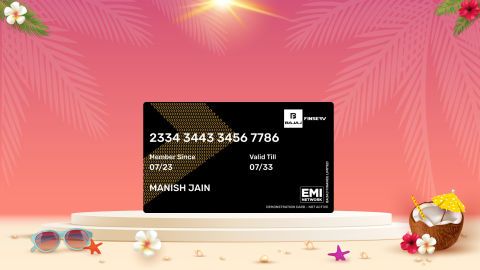
Explore Samsung mobiles on Easy EMIs from Bajaj Finserv
Bajaj Mall is the best online destination for you to read about all the details, features, and specs of your desired product. Once you have gathered all the information you want, head to the nearest Bajaj Finserv partner store and select the Samsung mobile you want. You can get a pre-approved loan to fund your purchase. You can check your pre-approved loan limit online or at the store. After that, provide your basic details, and convert the cost of your purchase into Easy EMIs.
Benefits of shopping with Bajaj Finserv’s financing options
Competitive prices: Bajaj Finserv partner stores offer unbeatable prices, making sure that your purchase fits your budget effortlessly.
Easy EMIs: With Bajaj Finserv’s financing options, you can easily afford your selected product. Enjoy the freedom to choose a repayment tenure that aligns with your financial comfort.
No upfront payment: Enjoy the convenience of no initial lump sum payment on select products, thanks to the zero down payment policy.
Wide selection and accessibility: Finding your preferred product has never been simple. Explore an extensive collection available at Bajaj Finserv partner stores across the country.
Exclusive deals and cashback: When you shop at a Bajaj Finserv partner store, you unlock access to exclusive deals and exciting cashback offers, enhancing your shopping experience.
Free home delivery: Enjoy the added benefit of free delivery on select products, making your shopping journey even more seamless.
Mobiles by brandsMobiles by featuresMobiles by budget
5G mobiles by brands
5G Mobiles By Budget
Brands by budget (Rs. 20,000)
| vivo mobiles under Rs. 20,000 | Samsung mobiles under Rs. 20,000 | Oneplus mobiles under Rs. 20,000 |
| iQOO mobiles under Rs. 20,000 | Xiaomi mobiles under Rs. 20,000 | POCO mobiles under Rs. 20,000 |
| Infinix mobiles under Rs. 20,000 | realme mobiles under Rs. 20,000 | motorola mobiles under Rs. 20,000 |
| Huawei mobiles under Rs. 20,000 | | |