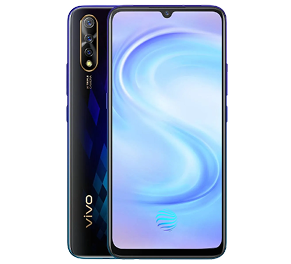
Split screen on vivo phones allows you to use two apps at the same time for easier multitasking. You can chat while watching videos, browse websites during calls, or take notes while attending online classes. Follow these simple steps to enable split screen mode on your vivo smartphone.
Step 1: Open the first app
Launch the first app you want to use in split screen mode. This can be YouTube, WhatsApp, Chrome, Notes, or any other compatible application available on your vivo phone.
Step 2: Open the recent apps menu
Swipe up and hold from the bottom of the screen, or tap the recent apps button if your phone uses navigation keys. This will display all recently opened apps.
Step 3: Enable split screen
Locate the split screen icon above the selected app preview and tap it. The app will move to the upper or side section of the screen, depending on your phone orientation.
Step 4: Select the second app
Choose another supported app from the recent apps list or app drawer. It will open in the remaining screen space, completing the split screen setup on your vivo phone.
Step 5: Adjust the app size
Drag the divider bar between the apps to resize them according to your preference. You can give more screen space to videos, chats, documents, or browsing windows for comfortable multitasking.
Step 6: Exit split screen mode
To close split screen, drag the divider bar completely to the top or bottom of the display. The remaining app will automatically continue in full screen mode.