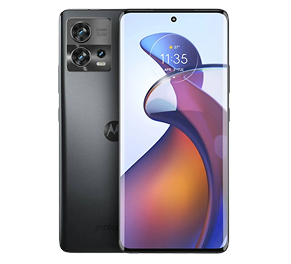
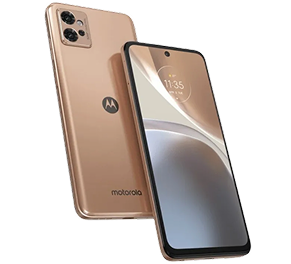
Here is a quick comparison of the main ways to unlock a motorola phone so you can choose the option that best fits your situation.
| Method | Erases data? | Best suited for |
|---|
| Google Find Hub (Find My Device) | Yes | Phones linked to your Google account with active internet access |
| Factory reset via Recovery Mode | Yes | Phones that cannot connect to the internet |
| Smart Lock or trusted setup | No | Users who enabled Smart Lock before getting locked out |
| motorola or authorised service centre | Depends | When other methods fail or professional help is needed |
Method 1: Unlock using Google Find Hub (Find My Device)
If your motorola phone is signed in to a Google account and connected to the internet, Google Find Hub (earlier known as Find My Device) allows you to remotely erase the device and remove the lock screen.
- On a computer or another phone, open Google Find Hub and sign in with the same Google account linked to the locked phone.
- Select your motorola device from the list.
- Choose the option to erase or factory reset the device.
- Confirm the action and wait for the reset to complete once the device comes online.
- Set up the phone again and sign in with your Google account.
This method works best when the phone is online and you still have access to your Google account.
Method 2: Factory reset using Recovery Mode
If the phone cannot connect to the internet, you can reset it using Recovery Mode. This method removes all data, including the lock screen.
- Switch off your motorola phone completely.
- Press and hold Power and Volume Down buttons until the boot menu appears.
- Use volume keys to select Recovery Mode and press Power to confirm.
- When the Android logo appears, press Power and tap Volume Up once to open recovery menu.
- Select Wipe data/factory reset and confirm.
- Choose Reboot system now after completion.
- Sign in with the previously used Google account during setup.
Method 3: Use Smart Lock or trusted devices
Smart Lock keeps your phone unlocked in trusted conditions, but only works if it was set up earlier.
- Trusted places: The phone may remain unlocked in saved locations like home or office.
- Trusted devices: Connecting a paired Bluetooth device such as a smartwatch may unlock it.
- On-body detection: The phone may stay unlocked while being carried after a recent unlock.
If Smart Lock was not enabled earlier, this option will not work.
Method 4: Use ADB (if USB debugging is enabled)
ADB can remove screen locks, but only if USB debugging was enabled and the computer was already authorised. Most users will not have this set up in advance, making it a less common solution.
Method 5: Visit a motorola or authorised service centre
If nothing works, visiting a motorola or authorised service centre is the safest option. Carry valid proof of ownership such as a bill or box. Technicians can help reset or unlock the device securely.