





Published Jul 20, 2026 · 4 Min Read

In summary


You can connect a MacBook to a TV using an HDMI cable, an adapter, or wirelessly through AirPlay. Most Smart TVs support at least one of these methods without extra software.


  • Wired options: HDMI cable or a USB-C to HDMI adapter for a direct, stable connection
  • Wireless option: AirPlay, built into every MacBook, for macbook screen mirroring without cables
  • Smart TV price range: Rs. 10,000 to Rs. 60,000
  • Financing: Bajaj Finance Insta EMI Card (up to Rs. 3 lakh) or Bajaj Finance Easy EMI Loan (up to Rs. 5 lakh)


Convert the cost into Easy EMIs using Bajaj Finance's financing options at partner stores such as Reliance Digital, Croma, and Vijay Sales. Check your loan eligibility in minutes.

Why connect a MacBook to a TV?

A MacBook's screen works well for individual use, but a TV makes a real difference for group viewing and detailed work. Streaming a film, giving a presentation, or reviewing photos becomes easier on a bigger display.

Connecting your MacBook to a TV lets you share your screen with more people at once, whether that is a movie night, a work presentation, or reviewing family photos together. It also gives you a second, larger workspace for editing or design work, without needing to buy a separate monitor.

Using HDMI cables and adapters for MacBook connectivity

A wired connection is the most reliable way to connect a MacBook to a TV, since it does not depend on Wi-Fi signal strength. Here is what you need, depending on your MacBook model.

  • USB-C to HDMI cable: Works directly with most modern MacBooks that only have USB-C or Thunderbolt ports.
  • USB-C to HDMI adapter: A compact option if you already own a standard HDMI cable and just need the port conversion.
  • Older MacBooks with HDMI ports: Some older MacBook Pro models have a built-in HDMI port, letting you connect directly with a standard HDMI cable.
  • Check your TV's HDMI input: Confirm a free HDMI port on your TV, and select the matching input source once connected.

How do I connect a MacBook to a TV wirelessly with AirPlay?

AirPlay lets you send your MacBook's screen or specific content to a compatible Smart TV over Wi-Fi, without any cables. It is built into every modern MacBook.

  • Check TV compatibility: AirPlay works natively on select Smart TVs; other TVs may need an Apple TV device or a compatible streaming stick.
  • Connect to the same Wi-Fi network: Your MacBook and TV need to be on the same home Wi-Fi network for AirPlay to detect the TV.
  • Use Screen Mirroring from Control Center: Open Control Center on your MacBook and select Screen Mirroring to see nearby AirPlay devices.
  • Select your TV: Choose your TV from the list to start mirroring your MacBook screen wirelessly.

Does AirPlay work with all televisions? Not quite. While wireless AirPlay is convenient, it only works natively on TVs that support the feature, and a weak Wi-Fi signal can cause lag. If your TV does not support AirPlay and you need a stable connection for work, an HDMI cable remains the more reliable choice.

How do I troubleshoot MacBook-to-TV connection issues?

Connection problems between a MacBook and TV are usually caused by a small set of common issues. Working through this checklist resolves most cases without needing technical support.

  • Confirm the correct HDMI input: If using a cable, make sure your TV is set to the HDMI port your MacBook is actually connected to.
  • Check the same Wi-Fi network: For AirPlay, your MacBook and TV must be on the same network, not just the same router brand.
  • Restart both devices: A simple restart of your MacBook and TV often resolves a stuck or failed connection.
  • Update macOS and TV software: Outdated software on either device can prevent AirPlay or HDMI output from working correctly.
  • Try a different cable or adapter: A faulty USB-C to HDMI cable or adapter is a common, overlooked cause of connection failure.

Get a Bajaj Finance Easy EMI Loan of up to Rs. 5 lakh on your next Smart TV purchase.

Tips for the best display and audio experience

Getting your MacBook connected is only the first step. These adjustments help you get a sharper picture and better sound once the connection is working.

  • Adjust display resolution: Go to System Settings on your MacBook to match the resolution to your TV's native display for the sharpest picture.
  • Use your TV as a second display: Extend your desktop instead of mirroring, so you can use the TV as a second monitor for your MacBook.
  • Enable TV speakers for audio: Select your TV as the audio output device in System Settings if sound does not switch automatically.
  • Keep your MacBook charged: Streaming or presenting for extended periods uses more battery, so keep your charger nearby during longer sessions.

If you are an existing Bajaj Finance Insta EMI Card holder, you may have a pre-approved card loan offer of up to Rs. 3 lakh.


Thinking of buying a new Smart TV?

Before you do that, explore the latest offers from Bajaj Finance. You may find a great deal on a model that matches your needs.

What are my financing options to buy a Smart TV?

Bajaj Finance offers two ways to convert your Smart TV purchase into affordable monthly payments. Both options are available at over 1.5 lakh partner stores across 4,000 cities in India.


OptionCard loan offer / loan amountKey features
Bajaj Finance Insta EMI CardPre-approved card loan offer of up to Rs. 3 lakhZero annual fee; 3 to 60 months tenure; works at 1.5 lakh partner outlets; 1 million eligible products
Bajaj Finance Easy EMI LoanLoan amount of up to Rs. 5 lakhQuick loan approval; 3 to 60 months tenure; basic KYC documents needed; ideal for higher-value purchases

How to choose?

Both options require you to be physically present at a partner store. The Insta EMI Card suits shoppers who want to buy across multiple categories over time. The Easy EMI Loan suits buyers financing a higher-value Smart TV purchase in a single transaction.

With Bajaj Finance's network of 1.5 lakh partner stores across 4,000 cities, you can finance a new Smart TV whether you live in a metro city or a Tier 2 city like Jaipur or Lucknow. The Insta EMI Card also carries zero annual fee, so there is no extra cost for holding it beyond the purchase itself.

How do I buy a Smart TV on EMI at a Bajaj Finance partner store?

Upgrading to a new Smart TV is simple and affordable with Bajaj Finance's in-store financing options. The entire process usually takes just 10 to 15 minutes. Follow these steps:

  1. Browse models online: Compare Smart TV brands, screen sizes, and prices before heading to the partner store.
  2. Find a partner store near you: Look for a nearby partner outlet such as Croma, Vijay Sales, or Reliance Digital.
  3. Check the Smart TV in person: Visit the partner store and explore available models. Check screen size, resolution, and smart features, including AirPlay or screen mirroring support, to find the one that suits your needs.
  4. Choose a suitable EMI option: At checkout, ask the store executive about the Bajaj Finance Insta EMI Card or Easy EMI Loan. Confirm available tenure options and whether your chosen model comes with a zero down payment offer.
  5. Complete payment and take your Smart TV home: Once approved, your purchase is processed immediately, and you can schedule delivery or installation at your convenience.

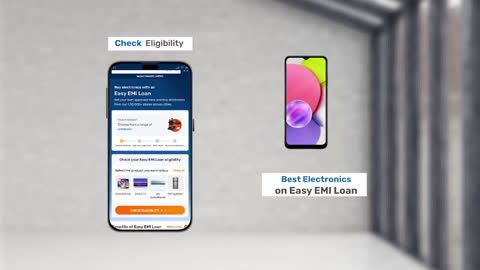
You can also check your loan eligibility online in advance by entering your mobile number and OTP, helping you plan your purchase better.

Why should I use the Smart Savings Calculator?

Bajaj Finance’s Smart Savings Calculator helps you unlock maximum savings every time you shop at partner stores. It brings together all available brand, dealer, and scheme offers—so you can see your total savings instantly and shop smarter with Easy EMIs.


1. Dealer offers - Grab exclusive in-store deals at over 1.5 lakh partner stores across India. Enjoy local discounts and special prices you will not find online.

2. Brand offers - Access limited-time discounts from top brands across electronics, appliances, and more. Discover brand-specific savings selected just for you.

3. Bajaj offers - Unlock exclusive Bajaj Finance deals on popular products—available only to our customers. More rewards, more value.

4. Scheme offers - Take advantage of time-sensitive offers on select EMI schemes. Get extra benefits after paying just 3 EMIs—visible during EMI selection at checkout.


Calculate your extra savings today!


Explore more:


TVs by brand:


Mi TVSony TVLG TVOnePlus TVSamsung TVVu TVTCL TV
Panasonic TVLloyd TVKodak TVrealme TVPhilips TVHaier TVIntex TV
Hyundai TVBPL TVAkai TVAmstrad TVSansui TVElista TVITEL TV


TVs by features:


LED TVSmart TVFull HD TVAndroid TV
OLED TVQLED TVHD TV 


TVs by size:


32-inch TV40-inch TV75-inch TV65-inch TV
43-inch TV49-inch TV50-inch TV55-inch TV


TVs by brands:


Sony TVMi TVLG TVHaier TVOnePlus TV
Vu TVTCL TVSamsung TVPanasonic TVPhilips TV


TVs by budget:


TVs under Rs. 15,000TVs under Rs. 20,000TVs under Rs. 25,000
TVs under Rs. 30,000TVs under Rs. 40,000TVs under Rs. 50,000

Frequently asked questions

Can I buy a new TV on EMIs?

Yes, you can easily upgrade to a new TV with Bajaj Finance's Easy EMI options. Whether you already have the Insta EMI Card or are new to it, here is how you can get started:


If you have the Bajaj Finance Insta EMI Card:

  • Explore televisions on Bajaj Mall: Choose from top brands offering models with high refresh rates, vibrant displays, and high-resolution.
  • Visit a partner store: Check out the latest TVs in person at any of 1.5 lakh partner stores across 4,000 cities.
  • Use your Insta EMI Card at checkout: Convert the total cost into Easy EMIs that fit your monthly budget.
  • Zero down payment on select models: Bring home your TV without paying anything upfront.

If you do not have an Insta EMI Card:

Check your Insta EMI Card eligibility online using your mobile number and OTP. If eligible, you can apply instantly and start shopping for your favourite television easily and affordably.

How do I connect my MacBook to a TV with HDMI?

Use a USB-C to HDMI cable or adapter if your MacBook only has USB-C or Thunderbolt ports. Connect one end to your MacBook and the other to a free HDMI port on your TV, then select that HDMI input on your TV's remote. This is one of the most reliable ways to connect macbook to television for a stable, lag-free picture.

Can I connect a MacBook to a Smart TV wirelessly?

Yes, most modern MacBooks support AirPlay, which lets you mirror your screen wirelessly to a compatible Smart TV. Open Control Center, select Screen Mirroring, and choose your TV from the list, provided both devices are on the same Wi-Fi network. Not all TVs support AirPlay natively, so check your TV's specifications first.

Does AirPlay work with all televisions?

No, AirPlay only works natively on TVs that specifically support the feature. If your TV does not have built-in AirPlay support, you may need an Apple TV device or a compatible streaming stick to enable it. An HDMI cable remains a reliable alternative if your TV does not support wireless mirroring at all.

Can I use my TV as a second monitor for a MacBook?

Yes, once connected by HDMI or AirPlay, you can choose to extend your display instead of mirroring it. This turns your TV into a second monitor, letting you move windows between your MacBook screen and the TV. This setup works well for design work, spreadsheets, or multitasking with a larger canvas.

Why is my TV not detecting my MacBook?

This is usually caused by both devices being on different Wi-Fi networks, an incorrect HDMI input selected, or outdated software on either device. Restart both your MacBook and TV first, then confirm the Wi-Fi network or HDMI input again. If wireless mirroring keeps failing, a USB-C to HDMI cable is a dependable backup.

Show more Show less

Bajaj Finance app for all your financial needs and goals

Trusted by 50 million+ customers in India, Bajaj Finance App is a one-stop solution for all your financial needs and goals.

You can use the Bajaj Finance App to:

  • Apply for loans online, such as Instant Personal Loan, Home Loan, Business Loan, Gold Loan, and more.
  • Invest in fixed deposits and mutual funds on the app.
  • Choose from multiple insurance for your health, motor and even pocket insurance, from various insurance providers.
  • Pay and manage your bills and recharges using the BBPS platform. Use Bajaj Pay and Bajaj Wallet for quick and simple money transfers and transactions.
  • Apply for Insta EMI Card and get a pre-qualified limit on the app. Explore over 1 million products on the app that can be purchased from a partner store on Easy EMIs.
  • Shop from over 100+ brand partners that offer a diverse range of products and services.
  • Use specialised tools like EMI calculators, SIP Calculators
  • Check your credit score, download loan statements and even get quick customer support—all on the app.

Download the Bajaj Finance App today and experience the convenience of managing your finances on one app.

Disclaimer

1. Bajaj Finance Limited (“BFL”) is a Non-Banking Finance Company (BAJAJ FINANCE) and Prepaid Payment Instrument Issuer offering financial services viz., loans, deposits, Bajaj Pay Wallet, Bajaj Pay UPI, bill payments and third-party wealth management products. The details mentioned in the respective product/ service document shall prevail in case of any inconsistency with respect to the information referring to BFL products and services on this page.

2. All other information, such as, the images, facts, statistics etc. (“information”) that are in addition to the details mentioned in the BFL’s product/ service document and which are being displayed on this page only depicts the summary of the information sourced from the public domain. The said information is neither owned by BFL nor it is to the exclusive knowledge of BFL. There may be inadvertent inaccuracies or typographical errors or delays in updating the said information. Hence, users are advised to independently exercise diligence by verifying complete information, including by consulting experts, if any. Users shall be the sole owner of the decision taken, if any, about suitability of the same.