





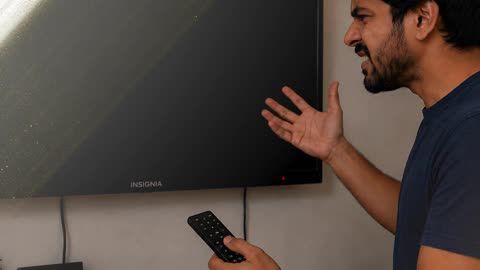
Insignia TV Troubleshooting - Problems and Step-By-Step Fixes

Insignia TV Troubleshooting - Problems and Step-By-Step Fixes

Learn common Insignia TV problems and simple troubleshooting steps for power, picture, sound, remote control, Wi-Fi and input-related issues.

Get a loan offer of up to Rs. 5 lakh

Quick approval | Flexible Tenure Options | Zero Approval Fees

In summary


Insignia TV troubleshooting starts by identifying the problem and checking simple causes before considering repair or replacement.

  • Restart the TV if it freezes or stops responding.
  • Check the power cable if the TV does not turn on.
  • Verify the selected input if the screen shows no signal.
  • Inspect HDMI and other cables for loose connections.
  • Check volume and audio settings when sound is missing.
  • Replace remote batteries if controls stop responding.
  • Restart the router if the TV loses Wi-Fi connection.
  • Check picture settings if the display looks unusually dark.
  • Install available software updates when supported.
  • Contact a technician if basic fixes do not solve the problem.

You can also buy a new TV on Easy EMIs at over 1.5 lakh partner stores across 4,000 cities, including Reliance Digital, Croma, and Vijay Sales. 
Overview of Insignia TV troubleshooting

Insignia TVs can sometimes develop problems such as no power, a blank screen, missing sound, remote control issues or Wi-Fi connection errors. Many basic problems can be checked by restarting the TV, inspecting cables, changing the input source or reviewing the settings. The correct fix depends on the problem and TV model. If simple troubleshooting does not work, professional inspection may be needed for internal hardware or electrical faults.


If you want to replace your TV, visit any of Bajaj Finance's 1.5 lakh partner stores — like Vijay Sales, Croma, Reliance Digital, and more — across 4,000 cities, including Tier 2 cities like Jaipur, Lucknow, Kochi, Bhopal, and more in India. Choose your preferred model, then use the Bajaj Finance Insta EMI Card or Bajaj Finance Easy EMI Loan to finance it. Convert the cost into Easy EMIs that suit your monthly budget and enjoy zero down payment on select models — take it home without any upfront payment. Check your loan eligibility online in minutes so you know exactly what you can get before you step into the store. 

What are the common Insignia TV problems and their solutions?

Insignia TVs can develop common issues with power, picture, sound, connectivity and remote controls, but basic troubleshooting may solve many problems quickly.

  • Power problems: Check the power cable, wall socket and remote batteries before attempting further troubleshooting steps carefully.
  • No picture: Restart the TV, check input selection and inspect HDMI cables for loose connections or damage.
  • No sound: Increase volume, disable mute and check audio settings, speakers and connected devices for problems first.
  • Wi-Fi issues: Restart the router and TV, then reconnect Wi-Fi and confirm the network password is correct.
  • Remote problems: Replace the remote batteries, remove nearby obstructions and try pairing the remote again if required.
  • App problems: Restart TV and internet connection, then update available apps or reinstall problematic applications if supported.
  • Poor picture: Adjust picture settings, check cable connections and ensure the selected source provides a stable signal.
  • Overheating: Keep ventilation areas clear, reduce heat buildup and avoid placing the TV near direct sunlight.

If these steps do not fix the issue, check your Insignia TV manual or contact qualified support for model-specific troubleshooting and repairs.

How do you troubleshoot an Insignia Fire TV step by step?

Troubleshooting an Insignia Fire TV involves checking power, connections, software, remote settings and network issues before considering professional repair or replacement services.

  • Check power: Confirm the TV is plugged in securely, then test another socket if power remains unavailable.
  • Restart TV: Unplug the TV for one minute, reconnect power, and restart it to clear temporary faults.
  • Check remote: Replace remote batteries, check button response, and re-pair the Fire TV remote if needed manually.
  • Check inputs: Check HDMI cables and input settings when connected devices appear blank, distorted, or unresponsive onscreen.
  • Check Wi-Fi: Restart your router, reconnect Wi-Fi, and confirm other devices can access the internet normally first.
  • Update software: Open Settings and install available Fire TV software updates to fix known performance problems promptly.
  • Check apps: Force-stop problematic apps, clear their cache, and reinstall them if freezing or crashing continues afterwards.
  • Factory reset: Use a factory reset only after backups and simpler fixes fail, because settings are erased.

If problems continue after these checks, note any error messages and contact Insignia or Amazon support for model-specific troubleshooting and repair guidance.

Where can you find additional resources for Insignia TV help?

You can find extra Insignia TV help through official support pages, product manuals, warranty information, troubleshooting guides and retailer assistance online easily.

  • Official support: Use Insignia support pages for setup instructions, troubleshooting steps, firmware information and product assistance online.
  • Product manuals: Check your TV manual for model-specific setup, connection, feature and troubleshooting instructions during common problems.
  • Warranty information: Review warranty details to understand coverage, service options and support available for your Insignia TV.
  • Retailer assistance: Contact the retailer where you purchased your TV for order, return or service-related assistance directly.
  • User forums: User forums can provide practical tips, but always verify technical advice before changing TV settings.
  • Customer support: Contact Insignia customer support for unresolved issues, repair guidance and help identifying your exact model.

Using official resources first can help you troubleshoot safely, understand your TV better and decide when professional repair support may be necessary.


Also :AI TV vs Smart TV 

When should you reset your Insignia Fire TV?

You should reset your Insignia Fire TV when persistent software issues, freezing, app errors or setup problems continue after simpler troubleshooting steps.

  • Frequent freezing: Reset the TV if menus or apps keep freezing after restarts and software updates fail.
  • App problems: Consider a reset when multiple apps crash or refuse to open after cache clearing fails.
  • Wi-Fi issues: Reset if the TV repeatedly loses internet despite router checks and repeated network reconnection attempts.
  • Update errors: Use a reset when system updates repeatedly fail even with stable internet and storage space.
  • Slow performance: Resetting may help when menus respond slowly and restarting the television brings no lasting improvement.
  • Setup problems: Reset before selling, gifting or changing owners to remove personal settings and accounts completely safely.
  • Persistent glitches: Try a reset when sound, picture or interface problems remain after normal troubleshooting steps fail.
  • Last resort: Use factory reset only after basic fixes because it removes apps, settings and sign-in information.

Before resetting, try restarting and checking updates first, because a factory reset removes settings, installed apps and account information from your TV.

When does an Insignia Fire TV need professional repair?

An Insignia Fire TV needs professional repair when hardware faults, repeated shutdowns, screen damage or power problems continue after basic troubleshooting steps.

  • No power: If the TV stays completely dead after outlet and cable checks, professional diagnosis is needed.
  • Screen damage: Cracked panels, lines, black patches or flickering usually require technician inspection and possible replacement parts.
  • Repeated shutdowns: Frequent restarting or shutdowns after resets may indicate faults in internal power boards or motherboards.
  • Sound without picture: Normal sound with no picture can point to backlight, panel or internal display circuit problems.
  • Overheating: Strong heat, burning smells or unusual noises require immediate shutdown and professional inspection for safety reasons.
  • Port failures: Multiple HDMI or USB ports failing after cable checks may indicate board damage requiring repair.
  • Software failures: Persistent Wi-Fi or Fire TV software failures after resets may need service or component testing.

Seek professional repair when basic resets, cable checks and settings changes fail, especially if the TV shows physical or electrical damage signs.

What are my financing options to buy an TV?

Bajaj Finance offers two financing options at over 1.5 lakh partner stores across 4,000 cities in India. Here is how they compare:


OptionLimitKey features
Bajaj Finance Insta EMI CardCard loan offer up to Rs. 6 lakh3 to 60 months tenure; works at 1.5 lakh partner stores; 1 million eligible products
Bajaj Finance Easy EMI LoanLoan offer up to Rs. 5 lakhQuick loan approval; 3 to 60 months tenure; basic KYC documents needed; ideal for higher-value purchases

How to choose? Both options require you to be physically present at a partner store. The Insta EMI Card is ideal for shoppers who want to purchase across multiple categories over time. The Easy EMI Loan suits buyers looking to finance a higher-value purchase in a single transaction.

How do I buy a TV on EMI at a Bajaj Finance partner store?

The process is simple and typically takes 10 to 15 minutes once you are at the store.


  1. Browse models on Bajaj Mall: Compare options on Bajaj Mall before visiting a store.
  2. Find a partner store near you: Use the Bajaj Finance store locator to find a nearby partner outlet such as Croma, Vijay Sales, or other authorised retailers.
  3. Check the TV in person: Check the key features, specifications, size, and performance to choose the product that best suits your needs and budget.
  4. Choose a suitable EMI option: At checkout, ask the store executive about the Bajaj Finance Insta EMI Card or Easy EMI Loan. Confirm available tenure options and whether your chosen model comes with a zero-down-payment offer.
  5. Complete payment and schedule installation: The in-store process is quick, and most partner stores offer installation as part of the purchase.

You can also check your loan eligibility online in advance by entering your mobile number and OTP, helping you plan your purchase better before visiting the store.

Save more with Smart Savings Calculator

Combine the best offers, EMI plans, and exclusive vouchers with Smart Savings Calculator to save big.

20k+ people used their offers at the store

Why use the Smart Savings Calculator

Bajaj Finance’s Smart Savings Calculator helps you unlock maximum savings every time you shop at partner stores. It brings together all available brand, dealer, and scheme offers—so you can see your total savings instantly and shop smarter with Easy EMIs.

1. Dealer offers - Grab exclusive in-store deals at over 1.5 lakh partner stores across India. Enjoy local discounts and special prices you will not find online.

2. Brand offers - Access limited-time discounts from top brands across electronics, appliances, and more. Discover brand-specific savings selected just for you.

3. Bajaj offers - Unlock exclusive Bajaj Finance deals on popular products—available only to our customers. More rewards, more value.

4. Scheme offers - Take advantage of time-sensitive offers on select EMI schemes. Get extra benefits after paying just 3 EMIs—visible during EMI selection at checkout.


Calculate your extra savings today! 

Frequently asked questions

General

EMI details

Why does my Insignia Fire TV keep restarting?

If your Insignia Fire TV keeps restarting, start by unplugging it from power for at least 30 seconds, then reconnect it. Repeated reboots can be linked to unstable power or a software problem. Use the original power cable and a wall outlet. If restarting continues, Amazon recommends a factory reset. You can hold Back and Right on the remote for 10 seconds to begin the reset process through the menu.

If your Insignia TV is not turning on, first check the power cord, wall outlet and remote batteries. Try another outlet and make sure the power cable is connected securely. Unplug the TV for at least 30 seconds, then reconnect it. If the screen remains blank, try the TV’s physical power button. Persistent power problems may indicate a hardware fault, so professional servicing may be needed after basic checks fail.

If your remote is unavailable, use the Amazon Fire TV app on a phone connected to the same Wi-Fi network as the TV. Open the app, select your Fire TV and use the on-screen remote. Go to Settings, My Fire TV or Device & Software, and choose Reset to Factory Defaults. If the TV is not on Wi-Fi, the app may not connect and a control method may be needed.

If your Insignia Fire TV will not connect to Wi-Fi, restart the TV and router first. Go to Settings, Network, turn Wi-Fi off and back on, then reconnect. If needed, forget the network and enter the password again. Amazon also recommends using Network Diagnostics and moving the router closer to the TV. If other devices are offline too, check your internet service or router for a possible wider connection problem.

To fix picture problems on an Insignia Fire TV, restart the TV and check for Fire TV software updates. Open the picture settings and try another picture mode, then adjust brightness, contrast or other settings if needed. For blank screens, also check the correct input and any HDMI connections. If lines, blur or colour problems remain after these steps, reset the picture settings or consider a factory reset if necessary.

Yes, you can easily bring home a TV using Bajaj Finance’s Easy EMI options. Whether you already have the EMI Network Card or are new to it, here is how to get started:


If you already have the Bajaj Finance EMI Network Card:

  • Explore TVs on Bajaj Mall: Choose from top brands and models with features like 4K display, HDR, and smart Android functions.
  • Visit a partner store: Check out the product in person at any of Bajaj Finance’s 1.5 lakh partner stores across 4,000 cities in India.
  • Use your EMI Network Card at checkout: Swipe your card and split the cost into Easy EMIs that suit your monthly budget.
  • Take it home without paying upfront: Some models offer zero down payment, so you can enjoy your TV immediately.

If you do not have an EMI Network Card:

Check your Insta EMI Card eligibility online using your mobile number and OTP. If eligible, you can apply instantly and shop for your favourite TV in a smarter, more affordable way.

Show More Show Less

Disclaimer

While care is taken to update the information, products, and services included in or available on our website and related platforms/websites, there may be inadvertent inaccuracies or typographical errors or delays in updating the information. The material contained in this site, and on associated web pages, is for reference and general information purpose and the details mentioned in the respective product/service document shall prevail in case of any inconsistency. Subscribers and users should seek professional advice before acting on the basis of the information contained herein. Please take an informed decision with respect to any product or service after going through the relevant product/service document and applicable terms and conditions. In case any inconsistencies observed, please click on reach us.

*Terms and conditions apply