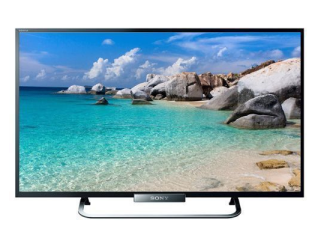
For the best TV experience, check out the wide range of models available on Bajaj Mall. Head to any of Bajaj Finserv’s 1.5 lakh partner stores across 4,000 cities in India to discover a wide selection of TVs. Choose the model that best fits your needs and take advantage of zero down payment offers, making your purchase more affordable by converting the cost into Easy EMIs.
How to connect wi-fi to Sony TV: Overview
To connect your Sony TV to wi-fi, simply navigate to the Settings menu, choose Network and Internet, and select wi-fi. Find and choose your home network, enter the password, and establish a connection. This setup allows you to access streaming platforms, apps, and the web, making the most of your Sony LED TV’s features. A stable wi-fi connection ensures a smooth entertainment experience.
Also check the latest television models such as 4K LED TV or Sony LED TV on EMI on Bajaj Mall.
Steps to connect Sony TV to Wi-Fi
- Access network settings: Go to the Settings menu on your Sony TV using the remote control.
- Select network and internet: Navigate to Network and Internet and choose the wi-fi option.
- Find your wi-fi network: Scan the available networks and select your home wi-fi network from the list.
- Enter wi-fi password: Use the on-screen keyboard to enter your wi-fi password, then confirm to connect.
- Confirm connection: Once connected, your Sony TV will display a confirmation message, and you can start browsing or streaming content.
Troubleshooting common issues: How to connect wi-fi to Sony TV
- Check wi-fi range and password: Ensure that your Sony TV is within range of your router and that you are entering the correct wi-fi password, as incorrect credentials can prevent connection.
- Restart router and TV: Restart both your router and TV to refresh the network connection and resolve any temporary issues.
- Reset network settings: If your Sony TV does not detect any wi-fi networks, go to Settings > Network and Internet and reset the network settings.
- Update TV firmware: Ensure that your TV firmware is up to date by navigating to Settings > Support > Software Update to fix potential software issues.
- Optimise the signal or use a wired connection: Move closer to the router or use a wi-fi extender to boost the signal. If issues persist, connect using an Ethernet cable for a stable wired connection. Contact Sony support if needed.
For those interested in exploring different avenues, Sony TV under Rs. 30,000
selection might be worth considering.
Updated price list of Sony TVs in India (February 2026)
Sony TVs are available in different screen sizes and technologies, including LED, 4K, and OLED models. The updated price list of Sony TVs in India helps buyers compare models and features easily before purchasing. Prices generally start from around Rs. 22,000 for smaller models and can exceed Rs. 5,00,000 for premium large-screen TVs.
Top Sony TV models available in India:
| Model | Screen size | Type | Approx. Price (Rs.) |
|---|---|---|---|
| Sony KD-32W830K | 32-inch | LED HD Smart TV | 26,000 – 30,000 |
| Sony KD-43X64L | 43-inch | 4K LED Smart TV | 32,000 – 36,000 |
| Sony KD-43X80L | 43-inch | 4K LED Smart TV | 45,000 – 50,000 |
| Sony KD-55X74L | 55-inch | 4K LED Smart TV | 57,000 – 60,000 |
| Sony KD-55X82L | 55-inch | 4K LED Smart TV | 59,000 – 65,000 |
| Sony BRAVIA 3 K-55S30 | 55-inch | 4K LED Smart TV | 70,000 – 75,000 |
| Sony XR-55X90L | 55-inch | 4K Full-Array LED TV | 82,000 – 90,000 |
| Sony XR-65X90L | 65-inch | 4K Full-Array LED TV | 1,20,000 – 1,30,000 |
| Sony XR-55A80K | 55-inch | OLED 4K Smart TV | 1,70,000 – 1,90,000 |
| Sony Bravia 9 Mini-LED | 85-inch | Mini-LED 4K TV | 4,50,000+ |
These Sony TVs come with Google TV interface, Dolby Vision HDR, and advanced picture processing, offering immersive viewing experiences across different price ranges.
Disclaimer: The features, availability, and pricing of each model are subject to change and may vary. For the most accurate and up-to-date information, please visit the official website.
Explore the latest offers from Bajaj Finserv and grab the best deals for a premium shopping experience.
Explore TVs on EMI with Bajaj Finserv
View the functionalities and details of TVs on Bajaj Mall. Once you have gathered all the necessary details, visit the nearest Bajaj Finserv partner store to pick your preferred products. Complete your purchases with Bajaj Finserv’s financing options, which set a predefined spending limit. You have the flexibility to pick a repayment period that fits your budget, allowing for Easy EMI payments. Bajaj Finserv also offers financing solutions for electronic purchases.
Benefits of shopping with Bajaj Finserv’s financing options
- Affordable pricing: Secure great deals on TV at Bajaj Finserv partner stores, offering excellent quality without stretching your budget.
- Easy EMIs: Purchasing a TV is simple and hassle-free with Bajaj Finserv’s Easy EMIs, giving you the flexibility to manage payments over time.
- Zero down payment: Start enjoying your new TV immediately, with no upfront payment required. Select models come with a zero down payment option.
- Wide range and accessibility: Discover an extensive range of TV at Bajaj Finserv partner outlets, ensuring you have plenty of options to choose from.
- Special deals and cashback: Unlock exciting offers and cashback opportunities when you finance your TV with Bajaj Finserv’s financing options.
- Complimentary home delivery: Enjoy the perks of free home delivery on selected TV, enhancing your overall shopping experience.
Bajaj Finserv App for all your financial needs and goals
You can use the Bajaj Finserv App to:
Apply for loans online, such as Instant Personal Loan, Home Loan, Business Loan, Gold Loan, and more.
- Explore and apply for co-branded credit cards online.
- Invest in fixed deposits and mutual funds on the app.
- Choose from multiple insurance for your health, motor and even pocket insurance, from various insurance providers.
- Pay and manage your bills and recharges using the BBPS platform. Use Bajaj Pay and Bajaj Wallet for quick and simple money transfers and transactions.
- Apply for Insta EMI Card and get a pre-approved limit on the app. Explore over 1 million products on the app that can be purchased from a partner store on Easy EMIs.
- Shop from over 100+ brand partners that offer a diverse range of products and services.
- Use specialised tools like EMI calculators, SIP Calculators
- Check your credit score, download loan statements, and even get quick customer support—all on the app.
Frequently asked questions
To connect your Sony TV to Wi-Fi, open the Settings menu using the remote. Go to Network or Wi-Fi settings, then select Set up connection. Choose your home Wi-Fi network from the list and enter the password. Once connected, your TV will be ready for internet streaming and apps.
If your Sony TV is not connecting to Wi-Fi, check whether the router is working properly. Make sure the Wi-Fi password is correct and the TV is within signal range. Restart the TV and router if needed. Network settings or software updates may also affect the connection.
To reset Wi-Fi on a Sony TV, go to Settings, then open Network settings. Choose the option to reset network or forget the current Wi-Fi network. After resetting, reconnect by selecting your Wi-Fi network again and entering the correct password. This often resolves connection issues.