




Published Jun 9, 2026 · 3 Min Read

Why watch Instagram Reels on a TV screen

Watching Instagram Reels on a TV screen offers a more enjoyable and immersive viewing experience than watching on a smartphone. The larger display makes videos easier to see, enhances visual details and allows users to enjoy content with greater comfort. Whether you are watching travel clips, entertainment videos, cooking tutorials or content from your favourite creators, streaming Reels to a TV can improve both picture quality and audio performance. It is also a convenient way to share content with friends and family without passing around a mobile device.


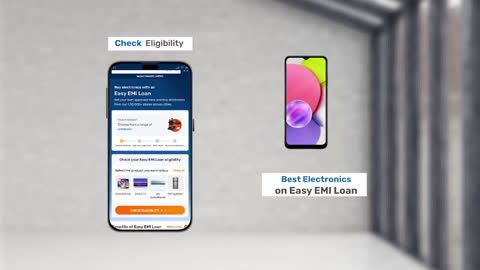
Explore TVs at any of Bajaj Finance’s 1.5 lakh partner stores in 4,000 cities in India. Choose your ideal model, pay with Easy EMIs, and enjoy zero down payment on select deals. Simply check your loan eligibility now and bring home your desired product without worrying about overspending.

How to view Instagram Reels on TV using screen mirroring

Screen mirroring is one of the easiest ways to watch Instagram Reels on a TV. It allows you to display your smartphone screen directly on a compatible smart TV, making it possible to view Instagram content on a larger display without additional apps.

  • Ensure both devices are connected to the same Wi-Fi network: Your smartphone and smart TV should be connected to the same wireless network for smooth screen mirroring.
  • Enable screen mirroring on the TV: Open the screen mirroring, Cast, AirPlay or wireless display option available in your TV settings.
  • Activate screen mirroring on your smartphone: Android users can use features such as Cast, Smart View or Screen Mirroring, while iPhone users can use AirPlay on compatible TVs.
  • Select your TV from the available devices: Choose the TV name from the list of detected devices and establish the connection.
  • Open the Instagram app: Once the connection is active, launch Instagram on your smartphone.
  • Play the desired Instagram Reel: The Reel will be displayed on the TV screen along with the rest of your phone’s display.
  • Adjust the viewing mode if needed: Use full-screen mode on the TV for a better viewing experience and improved visibility.
  • Control playback from your phone: You can browse, pause, skip or switch between Reels directly from your smartphone while viewing them on the TV.
  • Disconnect screen mirroring when finished: Turn off the casting or screen mirroring feature from your smartphone settings to end the session.

Different methods to watch Instagram reels on TV

There are several ways to watch Instagram Reels on a TV, depending on the type of television and device you use. Most methods involve connecting a smartphone, tablet or streaming device to the TV for a larger and more immersive viewing experience.

  • Screen mirroring: Mirror your smartphone screen directly to a compatible smart TV using features such as Cast, Smart View, Screen Mirroring or AirPlay.
  • Google Chromecast: Use a Chromecast device to cast your smartphone screen to the TV and view Instagram Reels on a larger display.
  • Apple AirPlay: iPhone and iPad users can stream Instagram Reels wirelessly to AirPlay-compatible smart TVs.
  • Smart TV casting features: Many smart TVs include built-in casting technologies that allow users to display content from their mobile devices without additional hardware.
  • Streaming devices: Devices such as Chromecast, Amazon Fire TV Stick and Roku can be used to mirror or cast Instagram Reels from a smartphone to a TV.
  • HDMI connection: Connect a smartphone, tablet or laptop to the TV using an HDMI adapter or cable to display Instagram content on the television screen.
  • Web browser on a smart TV: Some smart TVs allow users to access Instagram through a web browser and view Reels directly from the platform's website.
  • Laptop-to-TV connection: Open Instagram on a laptop browser and connect the laptop to the TV using HDMI or wireless display technology.
  • Wireless display adapters: Compatible wireless display adapters can transmit smartphone content to TVs that do not support native casting features.
  • Gaming consoles with browsers: Certain gaming consoles with web browser support can access Instagram and display Reels on a connected TV.

Connecting devices with HDMI and other wired methods

Wired connections provide a reliable way to watch Instagram Reels on a TV, especially when wireless casting or screen mirroring is unavailable. These methods offer stable video transmission with minimal lag and are compatible with a wide range of televisions.

  • Use an HDMI cable with a laptop: Open Instagram on a laptop browser, connect the laptop to the TV using an HDMI cable and select the appropriate TV input source.
  • Connect a smartphone using an HDMI adapter: Many smartphones can be connected to a TV through a USB-C-to-HDMI or Lightning-to-HDMI adapter, allowing the phone screen to be displayed on the television.
  • Use a tablet-to-TV HDMI connection: Tablets with compatible video output support can also be connected directly to a TV using an HDMI adapter and cable.
  • Select the correct TV input source: After connecting the device, switch the TV to the corresponding HDMI input to display the connected screen.
  • Enable screen duplication if required: Some devices may require display mirroring or external display settings to be activated before content appears on the TV.
  • Ensure adapter compatibility: Verify that the HDMI adapter supports video output and is compatible with your smartphone, tablet or laptop model.
  • Use high-quality cables: Reliable HDMI cables help maintain stable video quality and reduce connection issues.
  • Adjust display settings for better viewing: Configure screen resolution and display scaling if needed to optimise the Instagram viewing experience on the TV.
  • Keep the device charged during use: Long viewing sessions may drain battery power, so connecting the device to a charger can be helpful.
  • Disconnect safely after use: Remove cables and adapters carefully to avoid damaging ports on the TV or connected device.

Troubleshooting common streaming and casting issues

While watching Instagram Reels on a TV through casting, screen mirroring or wired connections is usually straightforward, users may occasionally experience connectivity or playback problems. Identifying and resolving these issues can help ensure a smoother viewing experience.

  • Check Wi-Fi connectivity: Ensure both the smartphone and smart TV are connected to the same Wi-Fi network, as different networks can prevent casting or screen mirroring from working properly.
  • Restart both devices: Restarting the smartphone, TV or streaming device can resolve temporary software glitches affecting the connection.
  • Verify casting compatibility: Confirm that the TV supports casting technologies such as Chromecast, AirPlay or screen mirroring before attempting to connect.
  • Update device software: Outdated TV firmware, smartphone operating systems or streaming apps may cause compatibility issues and connection failures.
  • Reconnect the casting session: Disconnect the current casting connection and reconnect it to refresh the communication between devices.
  • Check HDMI cable and adapter connections: For wired setups, ensure cables and adapters are securely connected and functioning correctly.
  • Reduce network congestion: Streaming performance may be affected if multiple devices are heavily using the same Wi-Fi network.
  • Close background applications: Too many apps running on the smartphone can affect casting performance and cause lag or interruptions.
  • Adjust screen mirroring settings: Verify that screen mirroring, Cast or AirPlay settings are enabled on both the TV and smartphone.
  • Reset network settings if necessary: If connection issues persist, resetting Wi-Fi or network settings on the smartphone and TV may help restore proper functionality.

Get electronics and appliances on Easy EMIs with Bajaj Finance

Bringing home your preferred product is now hassle-free with Bajaj Finance's flexible financing options. Follow these steps to get started:

  • Explore products on Bajaj Mall: Browse through a wide selection of products on Bajaj Mall. Compare features to find a model that meets your needs.
  • Visit a partner store: Once you shortlist a model, step into any of Bajaj Finance’s 1.5 lakh partner stores across 4,000 cities in India. See the product in person, talk to experts, and make a confident decision.
  • Choose the Easy EMI Loan option: At checkout, select the Bajaj Finance Easy EMI Loan. Avail financing of up to Rs. 5 lakh and split the cost into convenient monthly instalments. Some products also come with a zero down payment option.
  • Check your loan eligibility online: Plan better by checking your loan eligibility in minutes. Simply enter your mobile number and OTP to know your pre-approved limit.
  • Use the Insta EMI Card for purchases up to Rs. 3 lakh: Already own the Bajaj Finance Insta EMI Card? Use it for instant, paperless checkout and convert your purchases of up to Rs. 3 lakh into Easy EMIs.

Why use the Smart Savings Calculator

Bajaj Finance’s Smart Savings Calculator helps you unlock maximum savings every time you shop at partner stores. It brings together all available brand, dealer, and scheme offers—so you can see your total savings instantly and shop smarter with Easy EMIs.

1. Dealer offers - Grab exclusive in-store deals at over 1.5 lakh partner stores across India. Enjoy local discounts and special prices you will not find online.

2. Brand offers - Access limited-time discounts from top brands across electronics, appliances, and more. Discover brand-specific savings selected just for you.

3. Bajaj offers - Unlock exclusive Bajaj Finance deals on popular products—available only to our customers. More rewards, more value.

4. Scheme offers - Take advantage of time-sensitive offers on select EMI schemes. Get extra benefits after paying just 3 EMIs—visible during EMI selection at checkout.

Calculate your extra savings today!

FAQ

Can I buy a TV on EMI?

Yes, you can easily bring home your preferred TV using Bajaj Finance’s Easy EMI options. Whether you already have the Insta EMI card or are new to it, here is how to begin:


If you have the Bajaj Finance Insta EMI card:

  • Explore products on Bajaj Mall: Choose from a wide range of the latest and most popular models.
  • Visit a partner store: Check out the product in person at any of Bajaj Finance’s 1.5 lakh partner stores across 4,000 cities in India.
  • Use your Insta EMI card at checkout: Convert the cost into Easy EMIs that fit your monthly budget.
  • Zero down payment on select models: Take your chosen product home without paying anything upfront.

If you do not have an Insta EMI card:

Check your Insta EMI Card eligibility online using your mobile number and OTP. If you are eligible, apply instantly and enjoy a smarter, more affordable way to buy your favourite product on Easy EMIs.

Can I watch Instagram Reels on a Smart TV?

Yes, you can watch Instagram Reels on a smart TV by using screen mirroring, Chromecast, AirPlay, a web browser or a connected streaming device. These methods allow you to display Instagram content from your smartphone, tablet or computer on a larger screen.

How do I cast Instagram Reels to my TV?

You can cast Instagram Reels to your TV using built-in casting features such as Chromecast, AirPlay or screen mirroring. Ensure that both devices are connected to the same Wi-Fi network, then select your TV from the available casting options on your smartphone.

Can I use screen mirroring to watch Reels on TV?

Yes, screen mirroring is one of the most common ways to watch Instagram Reels on a TV. It mirrors your smartphone screen directly to a compatible smart TV, allowing you to browse and play Reels on a larger display.

Do I need a Smart TV to watch Instagram Reels?

No, a smart TV is not always required. You can use streaming devices such as Chromecast, Amazon Fire TV Stick, Roku or an HDMI connection from a smartphone, tablet or laptop to watch Instagram Reels on a non-smart TV.

Why is Instagram not casting to my TV?

Instagram may not cast properly if the devices are connected to different Wi-Fi networks, the TV does not support casting, the software is outdated or there are temporary connectivity issues. Restarting both devices, updating software and reconnecting the casting session can often resolve the problem.

Show More Show Less

Bajaj Finance App for all your financial needs and goals


Trusted by 50 million+ customers in India, Bajaj Finance App is a one-stop solution for all your financial needs and goals.

You can use the Bajaj Finance App to:

Apply for loans online, such as Instant Personal Loan, Home Loan, Business Loan, Gold Loan, and more.

  • Explore and apply for co-branded credit cards online.
  • Invest in fixed deposits and mutual funds on the app.
  • Choose from multiple insurance for your health, motor and even pocket insurance, from various insurance providers.
  • Pay and manage your bills and recharges using the BBPS platform. Use Bajaj Pay and Bajaj Wallet for quick and simple money transfers and transactions.
  • Apply for Insta EMI Card and get a pre-approved limit on the app. Explore over 1 million products on the app that can be purchased from a partner store on Easy EMIs.
  • Shop from over 100+ brand partners that offer a diverse range of products and services.
  • Use specialised tools like EMI calculators, SIP Calculators
  • Check your credit score, download loan statements, and even get quick customer support—all on the app.

Download the Bajaj Finance App today and experience the convenience of managing your finances on one app.

Disclaimer

1. Bajaj Finance Limited (“BFL”) is a Non-Banking Finance Company (BAJAJ FINANCE) and Prepaid Payment Instrument Issuer offering financial services viz., loans, deposits, Bajaj Pay Wallet, Bajaj Pay UPI, bill payments and third-party wealth management products. The details mentioned in the respective product/ service document shall prevail in case of any inconsistency with respect to the information referring to BFL products and services on this page.

2. All other information, such as, the images, facts, statistics etc. (“information”) that are in addition to the details mentioned in the BFL’s product/ service document and which are being displayed on this page only depicts the summary of the information sourced from the public domain. The said information is neither owned by BFL nor it is to the exclusive knowledge of BFL. There may be inadvertent inaccuracies or typographical errors or delays in updating the said information. Hence, users are advised to independently exercise diligence by verifying complete information, including by consulting experts, if any. Users shall be the sole owner of the decision taken, if any, about suitability of the same. 

Do more with the Bajaj Finance App!

UPI, Wallet, Loans, Investments, Cards, Shopping and more