





Published Apr 11, 2026 · 4 Min Read

In 2026, Samsung Smart TVs with Tizen OS give Indian households access to thousands of apps for streaming, sports, music, gaming, and kids content. Popular choices include Netflix, Prime Video, JioTV, Spotify, and YouTube. This guide highlights the best free and paid apps worth downloading so you can build the perfect smart TV experience without wasting money.


And if your current TV needs replacing, buying a new Samsung Smart TV has never been more affordable. Samsung Smart TV has never been more affordable. With Bajaj Finserv's financing options available across 1.5 lakh partner stores like Croma, Vijay Sales, and Reliance Digital in 4,000 cities, you can convert the cost into Easy EMIs with flexible tenures up to 60 months. Simply check your loan eligibility now and bring home your desired TV without worrying about overspending.
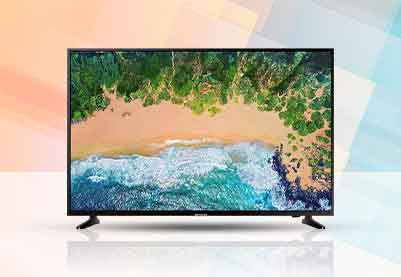
List of best Samsung Smart TV apps in India

Here is a comprehensive list of the best apps available on Samsung Smart TV in India in 2026 — covering streaming, music, sports, kids content, gaming, and more.


CategoryAppKey featuresCost
Streaming (Global)NetflixHuge catalog, strong originalsRs. 650/month (basic)
 Disney+ HotstarMarvel, Star Wars, Disney, IPL cricketRs. 499/year (mobile), higher for premium
 Amazon Prime VideoOriginals, movies, rentals, channelsIncluded with Prime (Rs. 1,499/year)
Streaming (India)JioTVLive Indian TV channels, regional contentFree with Jio connection
 Sony LIVSports, originals, Indian showsRs. 999/year
MusicSpotifyGlobal music streamingFree / Premium Rs. 119/month
 YouTubeMusic, videos, live streamsFree
Gaming and SocialWeekend SocialVoice-controlled trivia, party gamesFree trial, then Rs. 1,080/month (approx.)
Kids ContentDisney+Pixar, Disney classics, family showsBundled with Hotstar in India

Best free apps for Samsung Smart TV

Not every great Samsung Smart TV app requires a paid subscription. Here are the best completely free apps available on Samsung Smart TV in India in 2026.


  1. YouTube — best overall free app: With no subscription required, Indian users get access to unlimited video content across every category — from news and entertainment to cooking, fitness, education, and music videos — all in up to 4K quality on compatible Samsung models.
  2. JioTV — best free live TV: JioTV gives Jio subscribers free access to over 600 live Indian TV channels on their Samsung Smart TV — covering news, entertainment, sports, and regional language content with no additional cost beyond the existing Jio mobile or broadband plan.
  3. MX Player — best free movie streaming: MX Player offers a large library of free ad-supported Indian movies and web series on Samsung Smart TV — making it the best free alternative to paid OTT platforms for Indian households who want to watch Hindi, Tamil, and Telugu content without a subscription.
  4. Samsung TV Plus — best built-in free TV: Samsung TV Plus is a built-in free streaming service on all Samsung Smart TVs — offering over 100 free live channels covering news, entertainment, sports, and lifestyle content with no app download or subscription required.
  5. Twitch — best free gaming content: Twitch is completely free to watch on Samsung Smart TV, making it the best free app for Indian gaming enthusiasts who want to follow live esports tournaments, BGMI gameplay, and international gaming events without any subscription cost.
  6. YouTube Kids — best free kids content: YouTube Kids is a free, safe version of YouTube designed for children — offering curated, age-appropriate content with parental controls. It is the best free kids app on Samsung Smart TV for Indian households with young children.

Paid vs free Samsung TV apps — Which is worth it?

Choosing between paid and free Samsung Smart TV apps depends on your viewing habits and household needs. Here is an honest comparison to help Indian buyers decide.


AppFree or paidBest forMonthly cost
YouTubeFreeGeneral entertainment, news, educationFree
JioTVFree (Jio subscribers)Live Indian TV channelsFree
MX PlayerFree (ad-supported)Hindi and regional moviesFree
Samsung TV PlusFree (built-in)Live news and lifestyle channelsFree
NetflixPaidPremium international and original contentRs. 149 – Rs. 649
Amazon Prime VideoPaidIndian originals and international contentRs. 1,499/year
Disney+ HotstarPaidIPL cricket, Disney, and Indian TVRs. 299 – Rs. 899
Sony LIVPaidLive sports and Sony TV contentRs. 299 onwards
ZEE5PaidRegional Indian language contentRs. 299 onwards
SpotifyPaidMusic streamingRs. 119

Our recommendation for Indian households: Start with the free apps, YouTube, JioTV, MX Player, and Samsung TV Plus, to cover your basic entertainment needs at no cost. Add Disney+ Hotstar for IPL cricket and Amazon Prime Video for Indian originals as your first paid subscriptions, since both offer the strongest value for Indian viewers at their respective price points.

How to download apps on Samsung Smart TV

Downloading apps on a Samsung Smart TV is straightforward. Here is a step-by-step guide for Indian users.


  1. Step 1 — Connect to the internet: Ensure your Samsung Smart TV is connected to your home Wi-Fi network. Go to Settings, select General, choose Network, and connect to your Wi-Fi network if not already connected.
  2. Step 2 — Open the Samsung App Store: Press the Home button on your Samsung remote to open the Smart Hub. Navigate to the Apps section and select it to open the Samsung App Store.
  3. Step 3 — Search for your app: Use the search icon at the top of the App Store screen to search for the app you want to download. You can use the on-screen keyboard or voice search via the Samsung remote microphone button for faster searching.
  4. Step 4 — Download and install: Select the app from the search results, click Install or Download, and wait for the installation to complete. Most apps install within 30 to 60 seconds on a standard home broadband connection.
  5. Step 5 — Sign in and start watching: Once installed, open the app and sign in with your existing account credentials. For new subscriptions, complete the sign-up process on your smartphone or computer before signing in on the TV for a faster experience.
  6. Step 6 — Organise your apps: Press and hold any app icon on the Samsung home screen to move it to your preferred position. Place your most-used apps at the front of the home screen for faster access every day.

Tips to choose the best Samsung TV apps

With thousands of apps available on the Samsung App Store, choosing the right ones for your household can feel overwhelming. Here are practical tips to help Indian buyers make the right choices:


1. Match apps to your viewing habits

  • Movie and series lovers: Netflix, Amazon Prime Video, Disney+ Hotstar.
  • Sports fans: Sony LIV, JioTV, Disney+ Hotstar (for IPL cricket).
  • Music enthusiasts: Spotify, YouTube.
  • Families and kids: Disney+, YouTube Kids.
  • Gamers and social users: Weekend Social, cloud gaming apps.


2. Balance free vs paid apps

  • Free apps: JioTV, YouTube, MX Player, Samsung TV Plus.
  • Paid apps: Netflix (Rs. 650/month), Prime Video (Rs. 1,499/year), Disney+ Hotstar (Rs. 499/year basic). 

Combine free apps with one or two paid subscriptions to avoid overspending.


3. Check regional and local content

  • Apps like JioTV and Sony LIV offer regional channels and Indian shows.
  • Ensure your chosen apps cover Hindi, Marathi, Tamil, Telugu, or other preferred languages.


4. Evaluate app performance on Tizen OS

  • Some apps run smoother than others on Samsung’s Tizen OS.
  • Stick to apps officially available in the Samsung App Store to avoid compatibility issues.

5. Consider subscription bundles

  • Amazon Prime includes shopping, music, and video in one subscription.
  • Disney+ Hotstar often bundles cricket + family content at affordable rates.
  • Bundles save money compared to multiple standalone subscriptions.

6. Organise for easy access

  • Place your most-used apps (Netflix, JioTV, YouTube) at the front of the home screen.
  • Use Samsung’s Apps section to manage and update regularly.

Get a Samsung Smart TV on Easy EMIs with Bajaj Finserv

Upgrading to a Samsung Smart TV is simple and affordable with Bajaj Finserv's Easy EMI options. The entire process takes just a few minutes, and you can walk out with your new TV the same day. 


Follow these steps:


  1. Find a partner store near you: Use the Bajaj Finserv store locator to find a nearby outlet such as Croma, Reliance Digital, or Vijay Sales — available across 1.5 lakh partner stores in India. 
  2. Choose your Samsung Smart TV: Pick the model that best suits your room size and budget from the range available at the store or on Bajaj Mall.
  3. Select your EMI plan: At checkout, ask the store executive about the Bajaj Finserv Insta EMI Card or Easy EMI Loan. Choose a repayment tenure between 3 and 60 months, with zero down payment on select products.
  4. Complete payment and take it home: Once approved, your purchase is processed immediately and your new Samsung Smart TV will be delivered and installed at your home.

You can also check your loan eligibility online in advance by entering your mobile number and OTP — making your in-store experience faster and smoother.

Save more with Maha Bachat Savings Calculator

Bajaj Finserv’s savings calculator helps you unlock maximum savings every time you shop at partner stores. It brings together all available brand, dealer, and scheme offers—so you can see your total savings instantly and shop smarter with Easy EMIs.
 

  1. Dealer offers - Grab exclusive in-store deals at over 1.5 lakh partner stores across India. Enjoy local discounts and special prices you will not find online.
  2. Brand offers - Access limited-time discounts from top brands across electronics, appliances, and more. Discover brand-specific savings selected just for you.
  3. Bajaj offers - Unlock exclusive Bajaj Finserv deals on popular products—available only to our customers. More rewards, more value.
  4. Scheme offers - Take advantage of time-sensitive offers on select EMI schemes. Get extra benefits after paying just 3 EMIs—visible during EMI selection at checkout.


Calculate your extra savings now!

FAQs

Can I buy a TV on EMI?

Yes, you can easily bring home your preferred TV using Bajaj Finserv’s Easy EMI options. Whether you already have the EMI Network Card or are new to it, here is how to begin: 
 

  • Explore televisions on Bajaj Mall: Choose from a wide range of the latest and most popular models.
  • Visit a partner store: Check out the latest TV in person at any of Bajaj Finserv’s 1.5 lakh partner stores across 4,000 cities in India.
  • Use your EMI Network Card at checkout: Convert the cost of your TV into Easy EMIs that fit your monthly budget.
  • Zero down payment on select models: Take your chosen TV home without paying anything upfront.


If you do not have an EMI Network Card:
Check your Insta EMI Card eligibility and take the first step towards enjoying the affordability and convenience of Easy EMIs.

Can I install third party apps on Samsung TV?

Yes — but with limitations. Samsung Smart TVs run on Tizen OS, which does not natively support sideloading Android APK files like an Android TV would. However, Samsung does allow installation of third-party apps through its official Samsung App Store, which hosts thousands of apps beyond the pre-installed ones. Some tech-savvy users sideload apps using Samsung's developer mode, but this is not recommended for everyday Indian users as it can void the warranty and cause software instability.

What apps can you get on a Samsung smart TV?

Samsung Smart TVs give Indian users access to thousands of apps through the Samsung App Store. Popular categories include OTT streaming apps like Netflix, Amazon Prime Video, Disney+ Hotstar, ZEE5, and Sony LIV; free apps like YouTube, JioTV, and MX Player; music apps like Spotify; gaming apps; fitness apps like Cult.fit; kids apps like YouTube Kids; and news apps. The Samsung App Store is regularly updated with new apps suited to Indian viewing preferences and habits.

Can I add apps to my Samsung smart TV?

Yes — adding apps to a Samsung Smart TV is straightforward. Press the Home button on your remote, navigate to the Apps section to open the Samsung App Store, search for the app you want, and select Install or Download. Most apps install within 30 to 60 seconds on a standard home broadband connection. Once installed, the app appears on your Samsung Smart TV home screen and can be moved to your preferred position for faster everyday access.

Are Samsung TV apps free?

Some Samsung Smart TV apps are completely free and some require a paid subscription. Free apps include YouTube, JioTV, MX Player, Samsung TV Plus, Twitch, and YouTube Kids — which together cover live TV, movies, gaming, and kids content at no cost. Paid apps include Netflix starting at Rs. 149 per month, Amazon Prime Video at Rs. 1,499 per year, Disney+ Hotstar starting at Rs. 299 per month, and Spotify at Rs. 119 per month. Many Indian telecom plans from Jio, Airtel, and Vi include free OTT subscriptions that can be activated on your Samsung Smart TV.

Can I download Android apps on Samsung Smart TV?

No — Samsung Smart TVs run on Tizen OS, not Android TV or Google TV, which means they do not natively support downloading Android APK files from the Google Play Store. Only apps available in the Samsung App Store can be officially installed on a Samsung Smart TV. If you want access to the full Google Play Store and Android app ecosystem on your TV, you would need an Android TV or Google TV device — such as a Mi Box, Chromecast with Google TV, or a TV running stock Android TV OS.

Show more Show less

Bajaj Finserv app for all your financial needs and goals

Trusted by 50 million+ customers in India, Bajaj Finserv App is a one-stop solution for all your financial needs and goals.

You can use the Bajaj Finserv App to:

  • Apply for loans online, such as Instant Personal Loan, Home Loan, Business Loan, Gold Loan, and more.
  • Invest in fixed deposits and mutual funds on the app.
  • Choose from multiple insurance for your health, motor and even pocket insurance, from various insurance providers.
  • Pay and manage your bills and recharges using the BBPS platform. Use Bajaj Pay and Bajaj Wallet for quick and simple money transfers and transactions.
  • Apply for Insta EMI Card and get a pre-qualified limit on the app. Explore over 1 million products on the app that can be purchased from a partner store on Easy EMIs.
  • Shop from over 100+ brand partners that offer a diverse range of products and services.
  • Use specialised tools like EMI calculators, SIP Calculators
  • Check your credit score, download loan statements and even get quick customer support—all on the app.

Download the Bajaj Finserv App today and experience the convenience of managing your finances on one app.

Disclaimer

1. Bajaj Finance Limited (“BFL”) is a Non-Banking Finance Company (BAJAJ FINANCE) and Prepaid Payment Instrument Issuer offering financial services viz., loans, deposits, Bajaj Pay Wallet, Bajaj Pay UPI, bill payments and third-party wealth management products. The details mentioned in the respective product/ service document shall prevail in case of any inconsistency with respect to the information referring to BFL products and services on this page.

2. All other information, such as, the images, facts, statistics etc. (“information”) that are in addition to the details mentioned in the BFL’s product/ service document and which are being displayed on this page only depicts the summary of the information sourced from the public domain. The said information is neither owned by BFL nor it is to the exclusive knowledge of BFL. There may be inadvertent inaccuracies or typographical errors or delays in updating the said information. Hence, users are advised to independently exercise diligence by verifying complete information, including by consulting experts, if any. Users shall be the sole owner of the decision taken, if any, about suitability of the same.