





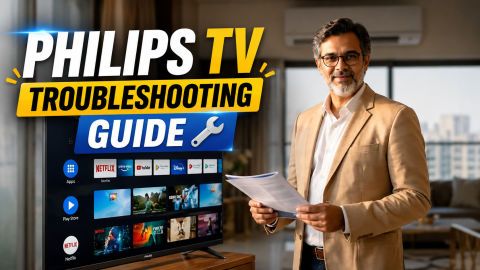
What Are the Common Philips TV Issues and How Can They Be Fixed

What Are the Common Philips TV Issues and How Can They Be Fixed

Find simple solutions for common Philips TV problems, including display errors, sound issues, connectivity problems, and remote-control concerns.

Get a pre-approved loan offers up to Rs. 5 lakh

Quick approval | Flexible tenure options | Zero approval fees

In summary

Philips TV troubleshooting can help fix common issues such as no picture, no sound, and connectivity problems through simple checks and settings adjustments. Many Philips TV problems can be resolved in under 5 steps without requiring technical assistance.

  • Restarting the TV by switching it off, unplugging it for a short time, and turning it back on can help clear temporary software glitches and restore normal performance.
  • Checking HDMI cables, input sources, and connected devices can help resolve display issues. Selecting the correct HDMI input and ensuring all cables are connected properly can restore the picture output.
  • Updating the TV software through Settings > System > Software Update can improve performance and fix software-related issues. Regular updates can also help ensure smoother operation of supported Philips TV models.
  • Adjusting picture, sound, and network settings can improve the overall viewing experience. Checking audio output, picture modes, and internet connection settings can help resolve issues while watching content or using smart features.
  • Resetting the TV settings can help when other troubleshooting steps do not work. A factory reset restores default settings and can fix persistent errors, although saved preferences may need to be configured again.

You can also buy a new television on Easy EMIs at over %EMI−storeheft% partner stores across %EMI−locheft% cities, including Reliance Digital, Croma, and Vijay Sales.
How to identify Philips TV problems and fix them


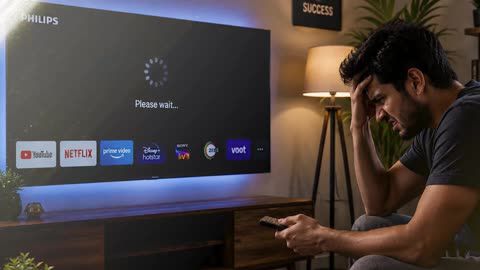
Philips TVs come with smart features, advanced display options, and convenient connectivity features, but occasional issues can affect the viewing experience. Philips TV troubleshooting helps identify and fix common concerns such as display problems, sound issues, connectivity errors, and software-related glitches. Whether it is a regular model or a 50-inch smart TV, understanding the possible causes and solutions can make resolving these issues easier. Checking connections, adjusting settings, restarting the device, and updating software are some simple ways to improve TV performance. This guide explains common Philips TV problems and provides practical solutions to help maintain smooth operation and enjoy uninterrupted entertainment.


If you want to replace your television, visit any of Bajaj Finance's %EMI−storeheft% partner stores — like Vijay Sales, Croma, Reliance Digital, and more — across %EMI−locheft% cities, including Tier 2 cities like Jaipur, Lucknow, Kochi, Bhopal, and more in India. Choose your preferred model, then use the Bajaj Finance Insta EMI Card or Bajaj Finance Easy EMI Loan to finance it. Convert the cost into Easy EMIs that suit your monthly budget and enjoy zero down payment on select models — take it home without any upfront payment. Check your loan eligibility online in minutes so you know exactly what you can get before you step into the store.


Also read: For users looking for a bigger viewing experience, exploring 60-inch LED TVs can help understand the advantages of larger screens, picture quality, and entertainment features.


What are the common Philips TV problems

The most common Philips TV problems include power issues, display errors, sound problems, connectivity concerns, and software glitches. These issues can often be fixed with basic Philips TV troubleshooting steps, such as checking connections, restarting the TV, adjusting settings, and updating the software.


  • The TV does not turn on: Power-related issues may happen due to loose connections, power supply problems, or temporary system errors. Check that the power cable is securely connected, ensure the power outlet is working, and restart the TV after switching it off for a few minutes.
  • The TV shows no picture or a black screen: A blank display may occur due to incorrect HDMI input selection, loose cables, or issues with connected devices. Check all HDMI connections, select the correct input source, and restart devices such as a set-top box, gaming console, or streaming device.
  • The TV has no sound output: Audio issues can occur due to muted settings, incorrect audio output selection, or problems with external speakers. Check the volume level, disable mute mode, verify audio settings, and reconnect any connected sound devices.
  • The TV remote is not working properly: Remote issues may happen due to weak batteries, pairing problems, or signal interruptions. Replace the batteries, remove any obstacles between the remote and TV sensor, and pair the remote again if required.
  • Connectivity problems: For issues with Philips Android TVs, restart the TV and your router or reconfigure the network settings to restore functionality. Checking the Wi-Fi connection, reconnecting the network, and updating software can help resolve internet and app-related problems.
  • Apps are not loading or streaming content is buffering: This issue is often caused by slow internet speed, outdated apps, or temporary software errors. Check the internet connection, restart the TV, update apps, and ensure that the latest software version is installed.
  • The TV freezes or restarts frequently: System glitches, outdated software, or overloaded settings may cause performance issues. Restart the TV, remove unnecessary connected devices, and install available firmware updates through the settings menu.
  • The TV has picture quality issues: Incorrect picture settings or signal problems can affect brightness, colour, and clarity. Adjust picture settings, check the connected device output, and ensure the content source supports the selected resolution.

Following these troubleshooting steps can help resolve common Philips television not working issues and improve overall performance. If the problem continues even after trying these solutions, professional support may be required to identify hardware-related faults.

How to fix common Philips TV problems with simple steps

Fixing common Philips TV problems can often be done at home with simple troubleshooting steps. Checking connections, restarting the TV, updating software, and adjusting settings can help resolve many display, sound, connectivity, and performance issues with the television.


  1. Check the power supply and connected devices: Start by checking that the power cable is connected securely and the power outlet is working properly. Also, inspect HDMI cables, set-top boxes, gaming consoles, or streaming devices to ensure they are connected correctly and the right input source is selected.
  2. Restart the Philips TV: Switch off the TV, unplug it from the power source, and wait for a few minutes before plugging it back in. This can help clear temporary system errors, frozen screens, and minor performance issues with the television.
  3. Reset the TV settings when needed: If basic troubleshooting does not resolve the issue, follow the steps for how to reset Philips TV and restore the device to its default settings. Remember that a reset may remove saved preferences, Wi-Fi details, and customised settings.
  4. Update the TV software: Keeping the software updated can help improve performance and fix known issues. For Android TV models, follow these Philips TV firmware update steps: go to Settings > System > Software Update >

    Check for updates. For Ambilight models, also check Ambilight settings under Settings > Ambilight > Style.

  5. Check network and app settings: If streaming apps are not working properly, restart the router, reconnect the television to Wi-Fi, and check for app updates. A stable internet connection can help improve streaming performance and ensure smoother access to online content.

Following these Philips TV troubleshooting steps can help resolve common issues and keep the television running smoothly. If problems continue after completing these steps, professional support may be required to identify hardware-related concerns and restore normal performance.

How to prevent common Philips TV problems with maintenance tips

Regular software updates have the highest impact on preventing Philips TV problems because they improve system stability, fix software-related issues, and help maintain smooth performance. Following simple maintenance habits can also reduce common display, sound, and connectivity problems over time.


  • Keep the software updated regularly: Install the latest firmware updates to improve performance and fix known software issues. For supported Android TV models, go to Settings > System > Software Update > Check for updates and install available updates.
  • Keep the ventilation area clear: Ensure there is enough space around the back and sides of the television for proper airflow. Avoid covering the vents or placing the TV near heat sources to prevent overheating and performance issues.
  • Clean the screen and exterior carefully: Use a soft, dry microfiber cloth to remove dust from the screen and TV body. Avoid using harsh cleaning liquids or spraying directly on the display to prevent damage.
  • Check cables and connected devices: Inspect HDMI cables, power cables, and connected devices such as set-top boxes or streaming devices regularly. Secure connections can help prevent display issues, signal loss, and connectivity problems.
  • Adjust picture settings based on usage: Set brightness according to room lighting and use available energy-saving options to reduce display strain. On supported models, enable Eco settings through the picture settings menu for automatic adjustments.
  • Restart the television occasionally: Restarting the Philips TV can help clear temporary system errors and improve performance. This can be useful when apps become slow, the TV freezes, or connectivity issues occur.

Following these Philips TV maintenance tips can help reduce common issues, improve reliability, and keep the television running smoothly for a longer time.

When do you need a Philips TV technician

A Philips TV technician should be contacted for serious issues such as a cracked screen, repeated power failures, and internal hardware faults that cannot be resolved through basic troubleshooting. While simple fixes can solve many Philips TV problems, attempting DIY repairs on hardware issues can void warranty coverage and lead to further damage.


  • Cracked screen or visible panel damage: A damaged display panel requires professional repair because replacing internal screen components needs specialised tools and expertise. Attempting to repair a cracked screen yourself voids the Philips warranty and may cause additional damage.
  • TV does not turn on after basic checks: If the television does not start even after checking the power cable, power outlet, and remote batteries, the issue may be related to internal components. A technician can inspect the power supply or hardware faults safely.
  • Repeated shutdowns or unexpected restarts: Frequent power interruptions, unusual sounds, or repeated restarts may indicate problems with internal parts. Avoid opening the television, as hardware repairs require professional handling.
  • Display lines, flickering, or permanent picture issues: If adjusting settings, checking cables, or restarting the TV does not resolve display problems, professional diagnosis may be needed to identify panel or component-related faults.
  • Software updates and basic troubleshooting do not resolve the issue: If firmware updates, resets, and connectivity checks fail to fix the problem, a technician can identify whether the issue is software-related or caused by hardware damage.

Seeking professional help for major Philips TV issues can prevent further damage and protect warranty coverage. For users looking to replace an old television, new TV options can also be purchased on Easy EMIs through Bajaj Finance at partner stores with flexible repayment options.

Maximise your savings with Maha Bachat

Combine the best summer offers, EMI plans, and exclusive vouchers with Maha Bachat to save big.

20k+ people used their offers at the store

What are my financing options to buy a television

Bajaj Finance offers two financing options at over 1.5 lakh partner stores across 4,000 cities in India. Here is how they compare:


OptionLimitKey features
Bajaj Finance Insta EMI CardPre-approved card loan offer up to Rs. 3 lakhZero annual fee; 3 to 60 months tenure; works at 1.5 lakh partner stores; 1 million eligible products
Bajaj Finance Easy EMI LoanLoan limit up to Rs. 5 lakhQuick loan approval; 3 to 60 months tenure; basic KYC documents needed; ideal for higher-value purchases

How to choose? Both options require you to be physically present at a partner store. The Insta EMI Card is ideal for shoppers who want to purchase across multiple categories over time. The Easy EMI Loan suits buyers looking to finance a higher-value purchase in a single transaction.


Also explore the latest offers. You may find a great deal on a model that matches your needs.

How do I buy a television on EMI at a Bajaj Finance partner store

The process is simple and typically takes 10 to 15 minutes once you are at the store.


  1. Browse models on Bajaj Mall: Compare options on Bajaj Mall before visiting a store.
  2. Find a partner store near you: Use the Bajaj Finance store locator to find a nearby partner outlet such as Croma, Vijay Sales, or other authorised retailers.
  3. Check the television in person: Check the key features, specifications, size, and performance to choose the product that best suits your needs and budget.
  4. Choose a suitable EMI option: At checkout, ask the store executive about the Bajaj Finance Insta EMI Card or Easy EMI Loan. Confirm available tenure options and whether your chosen

    model comes with a zero-down-payment offer.

  5. Complete payment and schedule installation: The in-store process is quick, and most partner stores offer installation as part of the purchase.

You can also check your loan eligibility online in advance by entering your mobile number and OTP, helping you plan your purchase better before visiting the store.

Why use the Smart Savings Calculator

Bajaj Finance’s Smart Savings Calculator helps you unlock maximum savings every time you shop at partner stores. It brings together all available brand, dealer, and scheme offers—so you can see your total savings instantly and shop smarter with Easy EMIs.

  1. Dealer offers - Grab exclusive in-store deals at over 1.5 lakh partner stores across India. Enjoy local discounts and special prices you will not find online.
  2. Brand offers - Access limited-time discounts from top brands across electronics, appliances, and more. Discover brand-specific savings selected just for you.
  3. Bajaj offers - Unlock exclusive Bajaj Finance deals on popular products—available only to our customers. More rewards, more value.­
  4. Scheme offers - Take advantage of time-sensitive offers on select EMI schemes. Get extra benefits after paying just 3 EMIs—visible during EMI selection at checkout.

Calculate your extra savings today!

Disclaimer

While care is taken to update the information, products, and services included in or available on our website and related platforms/websites, there may be inadvertent inaccuracies or typographical errors or delays in updating the information. The material contained in this site, and on associated web pages, is for reference and general information purpose and the details mentioned in the respective product/service document shall prevail in case of any inconsistency. Subscribers and users should seek professional advice before acting on the basis of the information contained herein. Please take an informed decision with respect to any product or service after going through the relevant product/service document and applicable terms and conditions. In case any inconsistencies observed, please click on reach us.

*Terms and conditions apply