How to Set the Time on Your Smartwatch

How to Set the Time on Your Smartwatch

Smartwatches sync time automatically with your phone. Learn to set it manually in 6 steps or buy your smartwatch on Easy EMIs.

Get a loan offer up to Rs. 5 lakh

Quick approval | Flexible tenure options | Zero approval fees

In summary

Most smartwatches automatically sync the time from your paired phone via Bluetooth. When the automatic sync fails — or when you travel to a different time zone — you can set the time manually in 6 simple steps. Here is what this guide covers:

  • Most smartwatches automatically update time when paired with a smartphone via Bluetooth
  • You can adjust the time manually by going to Settings → Date and Time on your watch
  • Toggling off automatic sync lets you set the time and time zone manually
  • For users in India, set the time zone to India Standard Time (IST) or GMT +5:30
  • Common causes of wrong time: poor Bluetooth connection, outdated software, or wrong time zone setting
  • Smartwatches start from around Rs. 1,499 in India
     

Convert the cost of your new smartwatch into Easy EMIs using Bajaj Finance's financing options at over 1.5 lakh partner stores such as Reliance Digital, Croma, Vijay Sales, and more, or find partner stores near you and check your loan eligibility before getting started.

Overview of setting time on your smartwatch

Have you ever been travelling between cities or preparing for a flight, only to notice your smartwatch is showing the wrong time? While most modern smartwatches sync automatically with your paired phone, knowing how to set the time manually ensures your watch always stays accurate — even when syncing fails or you cross a time zone.

The 6-step process below applies to most smartwatches available in India, including models running Wear OS, Samsung's One UI, and proprietary operating systems used by brands such as Noise, Amazfit, and boAt. The exact menu names may vary slightly by brand and model, but the overall approach is the same.

How do you set the time on a smartwatch?

Setting the time takes only a few minutes whether you are syncing automatically or adjusting manually. Follow these 6 steps to keep your watch accurate at all times.

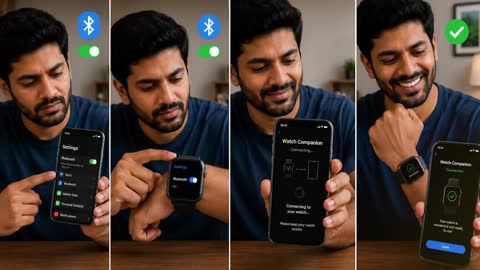
  1. Check for automatic sync: Make sure your smartwatch is connected to your smartphone via Bluetooth. When connected, most watches automatically pull the correct time from your phone without any manual input needed.
  2. Access Settings: Open the Settings menu on your smartwatch. This is usually done by swiping down from the top of the home screen or pressing the crown button or side button.
  3. Find the Date and Time settings: Look for a section labelled "Date and Time", "Time Settings", or "System" depending on your model. Tap it to open.
  4. Adjust the time manually: If the time shown is incorrect, toggle off the "Automatic sync" or "Set automatically" option. You can then manually adjust the hours, minutes, and date using the on-screen controls.
  5. Select the correct time zone: Choose your time zone from the list. If you are in India, select India Standard Time (IST) or GMT +5:30 to ensure accurate local time display.
  6. Save your changes: Confirm the adjustments and exit the settings menu. Your smartwatch will now display the updated time.

How do you set the time automatically via your phone?

For most users, automatic time sync is the simplest and most reliable method. Here is how to make sure it is working correctly.

  • Ensure Bluetooth is switched on and your smartwatch is paired with your smartphone
  • On your phone, go to Settings → System → Date and Time, and enable "Automatic date and time" and "Automatic time zone"
  • Open your smartwatch's companion app and check that time sync is enabled in the device or general settings
  • If the time still does not update, try toggling Bluetooth off and on, or restarting both your phone and watch
  • For some models — such as certain Amazfit and Haylou smartwatches — time sync can only be managed through the companion app, not directly on the watch
     

One important trade-off: relying solely on automatic sync means your watch may briefly show the wrong time if it loses Bluetooth connection in a low-signal area or after a firmware update. Knowing how to adjust the time manually gives you a reliable backup whenever automatic sync is unavailable.

How do you change the time zone on your smartwatch?

Changing the time zone correctly is essential when travelling to another city or country. An incorrect time zone affects not just the clock display, but also reminders, calendar alerts, and fitness tracking timestamps.
 

SituationWhat to do
Travelling to a different time zoneDisable automatic time zone and select your destination time zone manually in Settings → Date and Time
Watch showing time one hour offCheck if Daylight Saving Time (DST) is active in your phone's settings and toggle automatic time zone off and back on to refresh
Time zone stuck after returning from travelReconnect to Bluetooth, open the companion app, and re-enable automatic time zone sync
Watch not reflecting correct IST time in IndiaSet time zone manually to GMT +5:30 or India Standard Time in Settings

What do you do if your smartwatch keeps showing the wrong time?

If your smartwatch consistently shows incorrect time despite following the steps above, a few common issues may be causing the problem. Here is a quick troubleshooting guide.

  • Poor Bluetooth connection: Disconnect and reconnect your smartwatch to your phone. If the issue persists, unpair and re-pair the devices through the companion app.
  • Outdated software: Check for firmware updates on your watch and companion app updates on your phone. Outdated software is one of the most common causes of sync errors.
  • Wrong time zone on your phone: Your watch syncs from your phone, so if your phone's time zone is incorrect, your watch will reflect the same error. Fix the phone's time zone first.
  • Low battery: Some budget smartwatches reset time settings when the battery drops critically low. Keep your watch charged above 20% to prevent this.
     

Thinking of buying a new smartwatch?

Before you do that, explore the latest offers from Bajaj Finance. You may find a great deal on a model that matches your needs.

Maximise your savings with Maha Bachat

Combine the best summer offers, EMI plans, and exclusive vouchers with Maha Bachat to save big.

20k+ people used their offers at the store

What are my financing options to buy a smartwatch?

Bajaj Finance offers two ways to convert your smartwatch purchase into affordable monthly payments. Both options are available at over 1.5 lakh partner stores across 4,000 cities in India.
 

OptionLimitKey features
Bajaj Finance Insta EMI CardPre-approved card loan offer up to Rs. 3 lakhZero annual fee; 3 to 60 months tenure; works at 1.5 lakh partner stores; 1 million eligible products
Bajaj Finance Easy EMI LoanLoan limit up to Rs. 5 lakhQuick loan approval; 3 to 60 months tenure; basic KYC documents needed; ideal for higher-value purchases

How to choose?

Both options require you to be physically present at a partner store. The Insta EMI Card is ideal for shoppers who want to purchase across multiple categories over time. The Easy EMI Loan suits buyers looking to finance a higher-value smartwatch purchase in a single transaction.
 

Why Bajaj Finance works well for this purchase

With over 1.5 lakh partner stores across 4,000 cities, Bajaj Finance's network means you can buy a smartwatch whether you are in a metro like Chennai or a Tier 2 city like Surat or Chandigarh. The Bajaj Finance Insta EMI Card carries zero annual fee, and both options offer repayment tenures across 3 to 60 months, giving you genuine flexibility to match the EMI to your monthly budget.

A longer tenure lowers your monthly EMI but increases the total amount paid over the repayment period. A shorter tenure costs more each month but reduces your overall financing outgo. Factor this in when choosing a tenure.

How do I buy a smartwatch on EMI at a Bajaj Finance partner store?

Buying a new smartwatch with Bajaj Finance's in-store financing is simple and usually takes just 10–15 minutes. Follow these steps:

  1. Browse models on Bajaj Mall: Explore the range of smartwatches available on Bajaj Mall. Compare automatic time sync features, companion app compatibility, GPS accuracy, battery life, and prices before heading to a partner store.
  2. Find a partner store near you: Use the Bajaj Finance store locator to find a nearby Bajaj Finance partner store such as Croma, Vijay Sales, or other authorised retailers.
  3. Check the smartwatch in person: Visit the partner store and explore available models. Check the operating system, companion app compatibility with your phone, time sync reliability, display size, battery life, and strap comfort.
  4. Choose a suitable EMI option: At checkout, ask the partner store executive about the Bajaj Finance Insta EMI Card or Easy EMI Loan. Confirm available tenure options and whether your chosen model comes with a zero down payment offer.
  5. Complete payment and take your smartwatch home: Once approved, your purchase is processed immediately and you can take the watch home the same day.
     

You can also check your loan eligibility online in advance by entering your mobile number and OTP, helping you plan your purchase better.

Why use the Smart Savings Calculator

Bajaj Finance’s Smart Savings Calculator helps you unlock maximum savings every time you shop at partner stores. It brings together all available brand, dealer, and scheme offers—so you can see your total savings instantly and shop smarter with Easy EMIs.
 

1. Dealer offers - Grab exclusive in-store deals at over 1.5 lakh partner stores across India. Enjoy local discounts and special prices you will not find online.

2. Brand offers - Access limited-time discounts from top brands across electronics, appliances, and more. Discover brand-specific savings selected just for you.

3. Bajaj offers - Unlock exclusive Bajaj Finance deals on popular products—available only to our customers. More rewards, more value.

4. Scheme offers - Take advantage of time-sensitive offers on select EMI schemes. Get extra benefits after paying just 3 EMIs—visible during EMI selection at checkout.
 

Calculate your extra savings today!

Disclaimer

While care is taken to update the information, products, and services included in or available on our website and related platforms/websites, there may be inadvertent inaccuracies or typographical errors or delays in updating the information. The material contained in this site, and on associated web pages, is for reference and general information purpose and the details mentioned in the respective product/service document shall prevail in case of any inconsistency. Subscribers and users should seek professional advice before acting on the basis of the information contained herein. Please take an informed decision with respect to any product or service after going through the relevant product/service document and applicable terms and conditions. In case any inconsistencies observed, please click on reach us.

*Terms and conditions apply