






Wi-Fi setup in HP printers is a wireless configuration process that allows the printer to connect to a local internet network without the need for cables. Once connected, the printer can receive print commands from multiple devices such as laptops, smartphones and tablets, making printing more flexible and convenient in both home and office environments. Explore more printers at any of Bajaj Finance’s 1.5 lakh partner stores in 4,000 cities in India. Choose your ideal model, pay with Easy EMIs, and enjoy zero down payment on select deals. Simply check your loan eligibility now and bring home your desired product without worrying about overspending.
How to Connect HP Printer to Wi-Fi
Learn how to connect an HP printer to Wi-Fi using simple setup steps, wireless settings and troubleshooting tips for smooth printing from laptops, mobiles and networks.
You can get a range of printers on Easy EMIs. Check your loan eligibility in just a few clicks.
Wi-Fi setup in HP printers
How to set up Wi-Fi in HP printers
Wi-Fi setup in HP printers allows users to connect their printer to a wireless network so they can print documents from laptops, smartphones and tablets without using cables. This feature improves convenience, flexibility and printing efficiency in home and office environments.
- Wireless connectivity: Connects the printer directly to a Wi-Fi network, eliminating the need for USB or wired connections.
- Easy device access: Enables multiple users to print from different devices as long as they are on the same network.
- HP Smart app integration: Supports simple setup and control through the HP Smart app on mobile devices and computers.
- Control panel setup: Allows users to connect the printer to Wi-Fi using the built-in display and wireless settings menu.
- Wireless setup wizard: Guides users step by step to select a network and enter the password for connection.
- Network sharing: Makes it possible to share a single printer across multiple devices in a home or office.
- Remote printing options: Some HP printers support printing from cloud services and mobile devices even when users are away from the printer.
- Stable internet requirement: Requires a strong and consistent Wi-Fi signal for uninterrupted printing performance.
- Security authentication: Uses secure network credentials to ensure only authorized devices can access the printer.
- Automatic updates: Helps maintain connectivity performance and improves printer functionality over time.
How to set up HP printer Wi-Fi using HP Smart app and mobile devices
Setting up an HP printer using the HP Smart app is one of the easiest ways to connect your printer to Wi-Fi and enable wireless printing from smartphones, tablets and computers. This method works for most modern HP printers and ensures a quick and guided setup process.
- Download the HP Smart app: Install the app on your Android, iOS, Windows or macOS device from the official app store.
- Turn on the printer: Ensure your HP printer is powered on and ready for setup.
- Enable Wi-Fi mode: Make sure the printer’s wireless or setup mode is active so it can be detected by the app.
- Open the HP Smart app: Launch the app and allow necessary permissions for device and network access.
- Add your printer: Tap the add printer option and wait for the app to detect available HP printers nearby.
- Select your Wi-Fi network: Choose your home or office Wi-Fi network from the list shown in the app.
- Enter Wi-Fi password: Type the correct network password to connect the printer to Wi-Fi.
- Complete setup process: Follow on-screen instructions to finish configuration and confirm successful connection.
- Print a test page: Check connectivity and print quality by running a test print.
- Ensure same network access: Keep all devices connected to the same Wi-Fi network for smooth printing.
How to fix HP printer Wi-Fi and network connectivity issues
If your HP printer is not connecting to Wi-Fi or is facing network issues, there are several simple troubleshooting steps you can follow to restore stable wireless printing.
- Check Wi-Fi connection: Ensure your router is working properly and other devices are connected to the same network.
- Restart printer and router: Turn off both devices, wait a few seconds, and restart them to refresh the connection.
- Verify network selection: Make sure the printer is connected to the correct Wi-Fi network and not a guest or alternate network.
- Re-enter Wi-Fi password: Incorrect passwords can prevent connection, so reconnect using the correct credentials.
- Move printer closer to router: Weak signals can cause instability, so reduce distance or remove physical obstructions.
- Use HP Smart app diagnostics: Run network diagnostics through the HP Smart app to identify and fix issues automatically.
- Update printer firmware: Install the latest updates to improve compatibility and connectivity performance.
- Reset network settings: Restore the printer’s network settings and set up Wi-Fi connection again from scratch.
- Check firewall or security settings: Some router settings may block printer access, requiring configuration changes.
Get electronics and appliances on Easy EMIs with Bajaj Finance
Bringing home your preferred product is now hassle-free with Bajaj Finance's flexible financing options. Follow these steps to get started:
- Explore products on Bajaj Mall: Browse through a wide selection of products on Bajaj Mall. Compare features to find a model that meets your needs.
- Visit a partner store: Once you shortlist a model, step into any of Bajaj Finance’s 1.5 lakh partner stores across 4,000 cities in India. See the product in person, talk to experts, and make a confident decision.
- Choose the Easy EMI Loan option: At checkout, select the Bajaj Finance Easy EMI Loan. Avail financing of up to Rs. 5 lakh and split the cost into convenient monthly instalments. Some products also come with a zero down payment option.
- Check your loan eligibility online: Plan better by checking your loan eligibility in minutes. Simply enter your mobile number and OTP to know your pre-approved limit.
- Use the Insta EMI Card for purchases up to Rs. 3 lakh: Already own the Bajaj Finance Insta EMI Card? Use it for instant, paperless checkout and convert your purchases of up to Rs. 3 lakh into Easy EMIs.
Why use the Smart Savings Calculator
Bajaj Finance’s Smart Savings Calculator helps you unlock maximum savings every time you shop at partner stores. It brings together all available brand, dealer, and scheme offers—so you can see your total savings instantly and shop smarter with Easy EMIs.
1. Dealer offers - Grab exclusive in-store deals at over 1.5 lakh partner stores across India. Enjoy local discounts and special prices you will not find online.
2. Brand offers - Access limited-time discounts from top brands across electronics, appliances, and more. Discover brand-specific savings selected just for you.
3. Bajaj offers - Unlock exclusive Bajaj Finance deals on popular products—available only to our customers. More rewards, more value.
4. Scheme offers - Take advantage of time-sensitive offers on select EMI schemes. Get extra benefits after paying just 3 EMIs—visible during EMI selection at checkout.
Calculate your extra savings today!
FAQ
Can I buy a printer on EMIs?
Yes, you can easily bring home your preferred printer using Bajaj Finance’s Easy EMI options. Whether you already have the Insta EMI card or are new to it, here is how to begin:
If you have the Bajaj Finance Insta EMI card:
- Explore products on Bajaj Mall: Choose from a wide range of the latest and most popular models.
- Visit a partner store: Check out the product in person at any of Bajaj Finance’s 1.5 lakh partner stores across 4,000 cities in India.
- Use your Insta EMI card at checkout: Convert the cost into Easy EMIs that fit your monthly budget.
- Zero down payment on select models: Take your chosen product home without paying anything upfront.
If you do not have an Insta EMI card:
Check your Insta EMI Card eligibility online using your mobile number and OTP. If you are eligible, apply instantly and enjoy a smarter, more affordable way to buy your favourite product on Easy EMIs.
How do I connect HP printer to WiFi?
What is WPS method in HP printer?
WPS (Wi-Fi Protected Setup) is a quick method to connect an HP printer to a wireless network by pressing the WPS button on both the router and the printer without manually entering a Wi-Fi password.
Can HP printer connect wirelessly to mobile?
Yes, HP printers can connect wirelessly to mobile devices using Wi-Fi and can be controlled through the HP Smart app, allowing users to print, scan and manage settings directly from their smartphones.
Why is HP printer not connecting to WiFi?
An HP printer may not connect to Wi-Fi due to incorrect network password, weak signal strength, router issues, outdated firmware or the printer being connected to the wrong network.
Which app is used for HP wireless setup?
The HP Smart app is used for wireless setup, allowing users to connect the printer to Wi-Fi, manage settings and print directly from mobile devices and computers.
More articles

More Videos

Who is eligible for the Insta EMI Card?
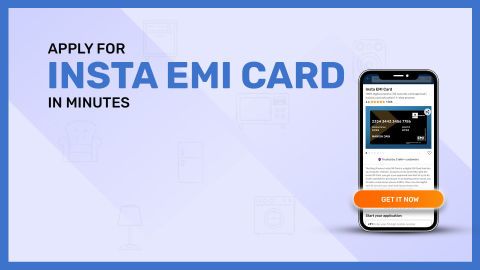
How to apply for Insta EMI Card
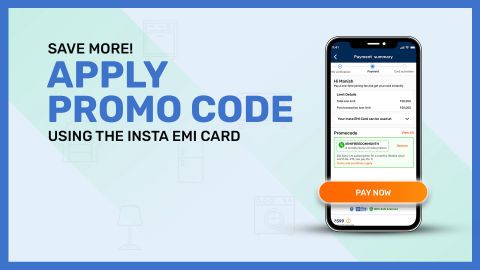
How to apply promo code with your Insta EMI Card
Bajaj Finance App for all your financial needs and goals
Trusted by 50 million+ customers in India, Bajaj Finance App is a one-stop solution for all your financial needs and goals.
You can use the Bajaj Finance App to:
Apply for loans online, such as Instant Personal Loan, Home Loan, Business Loan, Gold Loan, and more.
- Explore and apply for co-branded credit cards online.
- Invest in fixed deposits and mutual funds on the app.
- Choose from multiple insurance for your health, motor and even pocket insurance, from various insurance providers.
- Pay and manage your bills and recharges using the BBPS platform. Use Bajaj Pay and Bajaj Wallet for quick and simple money transfers and transactions.
- Apply for Insta EMI Card and get a pre-approved limit on the app. Explore over 1 million products on the app that can be purchased from a partner store on Easy EMIs.
- Shop from over 100+ brand partners that offer a diverse range of products and services.
- Use specialised tools like EMI calculators, SIP Calculators
- Check your credit score, download loan statements, and even get quick customer support—all on the app.
Download the Bajaj Finance App today and experience the convenience of managing your finances on one app.
Disclaimer
1. Bajaj Finance Limited (“BFL”) is a Non-Banking Finance Company (BAJAJ FINANCE) and Prepaid Payment Instrument Issuer offering financial services viz., loans, deposits, Bajaj Pay Wallet, Bajaj Pay UPI, bill payments and third-party wealth management products. The details mentioned in the respective product/ service document shall prevail in case of any inconsistency with respect to the information referring to BFL products and services on this page.
2. All other information, such as, the images, facts, statistics etc. (“information”) that are in addition to the details mentioned in the BFL’s product/ service document and which are being displayed on this page only depicts the summary of the information sourced from the public domain. The said information is neither owned by BFL nor it is to the exclusive knowledge of BFL. There may be inadvertent inaccuracies or typographical errors or delays in updating the said information. Hence, users are advised to independently exercise diligence by verifying complete information, including by consulting experts, if any. Users shall be the sole owner of the decision taken, if any, about suitability of the same.