





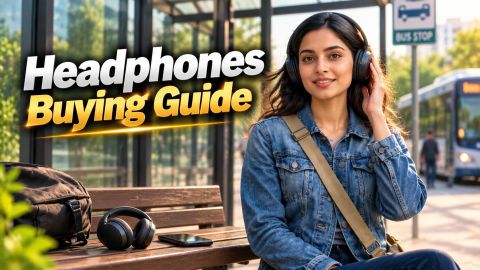
Connect Bluetooth Headphones to PC

Connect Bluetooth Headphones to PC

Connect Bluetooth headphones to a PC with up to 10m wireless range for cable-free audio, gaming and calls.

Get a loan offer up to Rs. 5 lakh

Quick approval | Flexible tenure options | Zero approval fees

In summary


Connecting Bluetooth headphones to a Windows PC or Mac computer enables wireless audio streaming, hands-free video conferencing, and clutter-free gaming sessions. You can easily pair your headphones through your computer's built-in Bluetooth settings or by using an external USB Bluetooth adapter.

  • Headphones price range: Rs. 1,499 to Rs. 29,990 across entry-level wireless neckbands, on-ear headsets, and premium active noise cancelling (ANC) headphones in India.
  • Windows connection steps: Go to Settings > Bluetooth & devices, turn on Bluetooth, put headphones in pairing mode, click Add device, and select your headset.
  • macOS connection steps: Open System Settings > Bluetooth, ensure Bluetooth is toggled on, hold the pairing button on your headphones, and click Connect next to your device name.
  • Troubleshooting options: Remove and re-pair devices, update Bluetooth driver software, or reset your headphone hardware when connection issues occur.

You can also buy a new headphones on Easy EMIs at over 1.5 lakh partner stores across 4,000 cities, including Reliance Digital, Croma, and Vijay Sales.
How does connecting Bluetooth headphones with laptop works?

A personal computer (PC) or laptop relies on integrated Bluetooth chipsets (Bluetooth 5.0 to 5.4 standards) or external USB dongles to stream wireless digital audio. Pairing wireless Bluetooth headphones with your computer delivers high-definition sound with low latency (under 80 ms), allowing you to work, attend virtual meetings, and play games comfortably without wired cable restrictions. Understanding how your computer's operating system manages audio output devices helps you resolve connection hiccups quickly. Switching playback default output from internal desktop speakers to your paired wireless headset ensures clear sound delivery across video conferencing tools and media players.


If you want to replace your headphones, visit any of Bajaj Finance's 1.5 lakh partner stores — like Vijay Sales, Croma, Reliance Digital, and more — across 4,000 cities, including Tier 2 cities like Jaipur, Lucknow, Kochi, Bhopal, and more in India. Choose your preferred model, then use the Bajaj Finance Insta EMI Card or Bajaj Finance Easy EMI Loan to finance it. Convert the cost into Easy EMIs that suit your monthly budget and enjoy zero down payment on select models. Check your loan eligibility online in minutes so you know exactly what you can get before you step into the store.

➜ Pro tip: Zero down payment is available on select models, so ask the store executive if your chosen headphones qualifies before you check out.

How to connect Bluetooth headphones to your PC step by step guide?

Connecting wireless headphones to a PC requires putting your headset into pairing mode and selecting it through your computer's built-in Bluetooth menu settings.

  1. Turn on pairing mode: Press and hold the power button on your wireless headphones for 3 to 5 seconds until the indicator LED flashes rapidly.
  2. Open Bluetooth settings on Windows 11: Click the Start button, open Settings, select Bluetooth & devices, and toggle the Bluetooth switch to On. (For Windows 10, navigate via Start > Settings > Devices > Bluetooth and other devices).
  3. Add your device: Click Add device, choose Bluetooth from the pop-up options, and wait for your computer to scan nearby hardware.
  4. Complete connection: Click your headphone model name from the search list, wait for the status to show connected, and click Done.


How you can get the best audio after connecting your bluetooth headphones to laptop?

Optimizing your wireless headset settings ensures crystal-clear stereo sound, minimal latency, and zero audio dropouts during media playback or virtual meetings. Configuring your computer's audio management controls properly prevents Windows from downscaling audio resolution to low-bitrate hands-free profiles, maintaining full dynamic range and rich bass performance across your favorite applications.


TipWhat to do
Enable high-quality audioNavigate to Settings > Sound > Properties and select the A2DP profile or aptX codec for stereo playback.
Maintain optimal rangeStay within 10 m / 33 ft of your PC to prevent signal interference and audio stuttering.
Update Bluetooth driversOpen Device Manager > Bluetooth, right-click your adapter driver, and select Search automatically for drivers.
Reduce wireless interferenceKeep your PC away from Wi-Fi routers operating on the 2.4 GHz frequency band.


How to put Bluetooth headphones into pairing mode?

To put most Bluetooth headphones into pairing mode, press and hold the power or Bluetooth button for 3 to 5 seconds until the LED flashes rapidly. Activating discovery mode allows your computer or smartphone to detect and pair with your wireless headset seamlessly.


Headphone typeHow to activate pairing modeLED indicator
Over-ear / on-ear wirelessPress and hold power button for 3–5 seconds from powered-off stateRapidly flashing blue and red or white light
True wireless earbudsPlace both earbuds inside charging case and hold case button for 3 secondsPulsing or flashing status light on charging case
Neckband stylePress and hold multi-function call button until status prompt playsAlternating blue and red flashing LED

Pro tip: If your computer does not discover your headset within 30 to 60 seconds, your headphones will automatically exit pairing mode to save battery life. Simply turn your headset off and repeat the button hold step to restart discovery mode.

What are the financing options to buy a Headphones?

Bajaj Finance offers two ways to convert an eligible headphones purchase into monthly payments at 1.5 lakh+ partner stores across 4,000+ cities.


OptionLimitKey features
Bajaj Finance Insta EMI CardLoan offer up to Rs. 3 lakh3–60 months tenure; 1.5 lakh+ outlets; 1 million+ eligible products
Bajaj Finance Easy EMI LoanLoan offer up to Rs. 5 lakh3–60 months tenure; basic KYC; suitable for higher-value purchases

Get a Bajaj Finance Easy EMI Loan of up to Rs. 5 lakh on your next headphones purchase. If you are an existing Bajaj Finance Insta EMI Card holder, you may have a loan offer of up to Rs. 3 lakh. Choose repayment tenures of up to 60 months.

Also explore the latest offers. You may find a great deal on a model that matches your needs.


How to choose? Both options require you to be physically present at a partner store. The Insta EMI Card is ideal for shoppers who want to purchase across multiple categories over time. The Easy EMI Loan suits buyers looking to finance a higher-value audio purchase in a single transaction.


Buyer scenario

Vikram, a 29-year-old software developer in Hyderabad, needs a active noise cancelling headset for remote work calls. He selects the Sony WH-CH720N Over-Ear ANC Headphones priced at Rs. 9,990 at a Croma partner store in Hyderabad. To keep his monthly budget balanced, he opts for a 12-month repayment tenure using his Bajaj Finance Insta EMI Card directly at checkout.

How can you buy headphones on EMI at a Bajaj Finance partner store?

The process is simple and typically takes 10 to 15 minutes once you are at the store.

  • Browse models on Bajaj Mall: Compare options on Bajaj Mall before visiting a store.
  • Find a partner store near you: Use the Bajaj Finance store locator to find a nearby partner outlet such as Croma, Vijay Sales, or other authorised retailers.
  • Check the headphones in person: Check the key features, specifications, size, and performance to choose the product that best suits your needs and budget.
  • Choose a suitable EMI option: At checkout, ask the store executive about the Bajaj Finance Insta EMI Card or Easy EMI Loan. Confirm available tenure options and whether your chosen model comes with a zero down payment offer.
  • Complete payment and schedule installation: The in-store process is quick, and most partner stores offer installation as part of the purchase.

You can also check your loan eligibility online in advance by entering your mobile number and OTP, helping you plan your purchase better before visiting the store.

Save more with Smart Savings Calculator

Combine the best offers, EMI plans, and exclusive vouchers with Smart Savings Calculator to save big.

20k+ people used their offers at the store

Why use the Smart Savings Calculator?

Bajaj Finance’s Smart Savings Calculator helps you unlock maximum savings every time you shop at partner stores. It brings together all available brand, dealer, and scheme offers—so you can see your total savings instantly and shop smarter with Easy EMIs.

1. Dealer offers - Grab exclusive in-store deals at over 1.5 lakh partner stores across India. Enjoy local discounts and special prices you will not find online.

2. Brand offers - Access limited-time discounts from top brands across electronics, appliances, and more. Discover brand-specific savings selected just for you.

3. Bajaj offers - Unlock exclusive Bajaj Finance deals on popular products—available only to our customers. More rewards, more value.­

4. Scheme offers - Take advantage of time-sensitive offers on select EMI schemes. Get extra benefits after paying just 3 EMIs—visible during EMI selection at checkout.

Calculate your extra savings today!

Frequently asked questions

Connection and usage

EMI details

Can Bluetooth headphones connect to a PC and phone simultaneously?

Yes, if your wireless headset supports Bluetooth Multipoint technology, it can connect to both your PC and smartphone at the same time. This feature allows your headphones to stream desktop audio seamlessly while automatically switching to your phone when an incoming call arrives, without requiring manual re-pairing.

If your PC is not detecting your headphones, verify that your headset is in active pairing mode (holding power for 3–5 seconds until the LED flashes). Ensure Bluetooth is toggled On under Settings > Bluetooth & devices, turn off nearby phone Bluetooth to avoid auto-pairing, and restart your computer's Bluetooth drivers in Device Manager.

Standard Windows systems can only output active audio to one Bluetooth device at a time. However, you can stream to multiple wireless headphones simultaneously by using a specialized dual-stream USB Bluetooth transmitter adapter.

Your PC fails to detect your headphones when the headset exits discovery mode (after a 30–60 second timeout) or stays locked to another paired phone. Fix this by resetting your headphones, clearing existing paired device memories, and re-entering discovery mode before searching via Start > Settings > Bluetooth & devices > Add device.

Bluetooth headphones sound low quality or mono because Windows automatically switches the audio profile from high-definition A2DP stereo mode to low-bitrate Hands-Free AG Audio mode during voice calls. To restore rich stereo sound, open Settings > Sound > Output and select the stereo audio profile instead of hands-free mode.

Yes, you can easily bring home your preferred headphone using Bajaj Finance’s Easy EMI options. Whether you already have the Insta EMI card or are new to it, here is how to begin:


If you have the Bajaj Finance Insta EMI card:

  • Explore products on Bajaj Mall: Choose from a wide range of the latest and most popular models.
  • Visit a partner store: Check out the product in person at any of Bajaj Finance’s 1.5 lakh partner stores across 4,000 cities in India.
  • Use your Insta EMI card at checkout: Convert the cost into Easy EMIs that fit your monthly budget.
  • Zero down payment on select models: Take your chosen product home without paying anything upfront.

If you do not have an Insta EMI card:

Check your Insta EMI Card eligibility online using your mobile number and OTP. If you are eligible, apply instantly and enjoy a smarter, more affordable way to buy your favourite headphone on Easy EMIs.

Show more Show less

Disclaimer

While care is taken to update the information, products, and services included in or available on our website and related platforms/websites, there may be inadvertent inaccuracies or typographical errors or delays in updating the information. The material contained in this site, and on associated web pages, is for reference and general information purpose and the details mentioned in the respective product/service document shall prevail in case of any inconsistency. Subscribers and users should seek professional advice before acting on the basis of the information contained herein. Please take an informed decision with respect to any product or service after going through the relevant product/service document and applicable terms and conditions. In case any inconsistencies observed, please click on reach us.

*Terms and conditions apply