

Published Jun 6, 2026 · 4 Min Read

Network printer - Overview

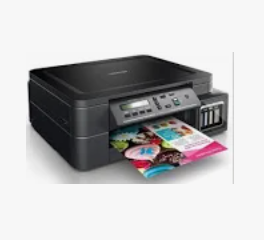
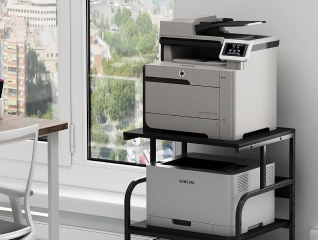
A network printer is a printer that connects to a wired or wireless network, allowing multiple devices to access and use the same printer without requiring a direct USB connection. Network printers are commonly used in homes, offices and business environments where several users need shared printing access. Unlike traditional printers that connect to a single computer, network printers communicate through Wi-Fi, Ethernet or local network connections. Once connected to the network, users can print documents from computers, laptops, smartphones and tablets that are connected to the same network.


Explore more printers at any of Bajaj Finance’s 1.5 lakh partner stores in 4,000 cities in India. Choose your ideal model, pay with Easy EMIs, and enjoy zero down payment on select deals. Simply check your loan eligibility now and bring home your desired product without worrying about overspending.

How to add a network printer on Windows and Mac devices

Adding a network printer allows multiple devices to access the same printer through a wired or wireless network. The setup process is straightforward on both Windows and Mac systems when the printer is properly connected to the network.
 

On Windows devices

  • Connect the printer to the network: Ensure the printer is connected to the same Wi-Fi or Ethernet network as the computer.
  • Open Settings: Go to Settings > Bluetooth & devices > Printers & scanners.
  • Select Add printer or scanner: Windows will search for available network printers.
  • Choose the printer: Select the detected network printer from the list.
  • Install required drivers: Allow Windows to install the necessary printer drivers automatically.
  • Complete the setup: Follow the on-screen instructions and print a test page to verify the connection.


On Mac devices

  • Connect the printer to the network: Verify that the printer and Mac are connected to the same network.
  • Open System Settings: Go to System Settings > Printers & Scanners.
  • Click Add Printer, Scanner or Fax: Mac will scan for available network printers.
  • Select the network printer: Choose the printer from the list of detected devices.
  • Install printer software if prompted: macOS may automatically download and install compatible drivers.
  • Finish the setup: Add the printer and print a test document to confirm successful installation.


After installation

  • Set the printer as default if required: This makes it easier to send print jobs without manually selecting the printer each time.
  • Check network connectivity: Ensure both the printer and device remain connected to the same network.
  • Keep printer drivers updated: Updated software helps maintain compatibility and reliable printing performance.

How to configure network printer IP address and connectivity settings

Proper IP address configuration and network connectivity settings are essential for ensuring that a network printer communicates reliably with computers and other devices. Correct setup helps prevent connection failures, printer offline issues and printing interruptions.

  • Find the printer IP address: Check the printer display panel, network settings menu or print a network configuration page to locate the current IP address.
  • Ensure the printer is connected to the network: Verify that the printer is connected to the correct Wi-Fi network or Ethernet connection.
  • Access printer network settings: Open the printer’s network configuration menu to view and manage connectivity settings.
  • Assign a static IP address if required: Using a static IP address can help maintain a stable printer connection and avoid IP address changes.
  • Verify subnet mask and gateway settings: Ensure network configuration details match the local network settings.
  • Add the printer using its IP address: On Windows or Mac, manually add the printer by entering the IP address if automatic detection fails.
  • Check firewall and security settings: Network security software should allow communication between the printer and connected devices.
  • Test network connectivity: Use the printer’s network test function or ping the IP address from a computer to confirm connectivity.
  • Restart network devices if needed: Reboot the printer, router and computer to refresh network communication.
  • Update printer firmware: Installing the latest firmware can improve network performance and connectivity stability.

How to troubleshoot network printer connection and detection issues

Network printer connection and detection issues can prevent devices from finding or communicating with the printer. These problems are often caused by incorrect network settings, connectivity interruptions or outdated software. Following these troubleshooting steps can help restore normal printer functionality.

  • Check network connectivity: Ensure the printer and computer are connected to the same Wi-Fi network or local network.
  • Restart the printer and router: Rebooting network devices can resolve temporary connection and communication issues.
  • Verify the printer IP address: Confirm that the printer has a valid IP address and is accessible on the network.
  • Run a network connection test: Use the printer’s built-in network diagnostic tools to identify connectivity problems.
  • Check printer status: Make sure the printer is online and not paused or showing error messages.
  • Add the printer manually: If automatic detection fails, add the printer using its IP address through system settings.
  • Update printer drivers: Install the latest printer drivers to improve compatibility and network communication.
  • Review firewall and security settings: Ensure security software is not blocking printer discovery or network access.
  • Reconnect the printer to the network: Remove and reconnect the printer to refresh wireless or wired network settings.
  • Update printer firmware: Firmware updates can fix network-related bugs and improve connection stability.
  • Check shared printer settings: If using a shared printer, verify that printer sharing is enabled on the host device.
  • Test printing from another device: Printing from a different computer or mobile device can help identify whether the issue is device-specific or network-related.

Best practices to maintain and secure a network printer

Regular maintenance and proper security measures help ensure reliable network printer performance, reduce downtime and protect sensitive information from unauthorized access. Following these best practices can improve printer efficiency and extend the device's lifespan.

  • Keep printer firmware updated: Install the latest firmware updates to improve performance, fix bugs and address security vulnerabilities.
  • Update printer drivers regularly: Using current drivers helps maintain compatibility with operating systems and network devices.
  • Use strong network passwords: Secure the wireless network and printer administrator settings with strong, unique passwords.
  • Limit printer access when necessary: Restrict printer permissions to authorized users and devices only.
  • Monitor printer activity: Regularly review printer logs and network activity to identify unusual usage patterns.
  • Enable network security features: Use available encryption, authentication and access control settings provided by the printer.
  • Clean the printer regularly: Remove dust, debris and paper residue to maintain consistent print quality and hardware performance.
  • Check network connectivity periodically: Verify that the printer remains connected to the network and functions correctly.
  • Replace consumables on time: Change ink cartridges, toner cartridges and other consumable parts before they affect performance.
  • Back up printer configuration settings: Save important network and printer settings to simplify recovery after resets or upgrades.
  • Disable unused services and ports: Turning off unnecessary network services can reduce security risks.
  • Restart the printer occasionally: Periodic restarts can help refresh system processes and maintain stable operation.

Get electronics and appliances on Easy EMIs with Bajaj Finance

Bringing home your preferred product is now hassle-free with Bajaj Finance's flexible financing options. Follow these steps to get started:

  • Explore products on Bajaj Mall: Browse through a wide selection of products on Bajaj Mall. Compare features to find a model that meets your needs.
  • Visit a partner store: Once you shortlist a model, step into any of Bajaj Finance’s 1.5 lakh partner stores across 4,000 cities in India. See the product in person, talk to experts, and make a confident decision.
  • Choose the Easy EMI Loan option: At checkout, select the Bajaj Finance Easy EMI Loan. Avail financing of up to Rs. 5 lakh and split the cost into convenient monthly instalments. Some products also come with a zero down payment option.
  • Check your loan eligibility online: Plan better by checking your loan eligibility in minutes. Simply enter your mobile number and OTP to know your pre-approved limit.
  • Use the Insta EMI Card for purchases up to Rs. 3 lakh: Already own the Bajaj Finance Insta EMI Card? Use it for instant, paperless checkout and convert your purchases of up to Rs. 3 lakh into Easy EMIs.

Why use the Smart Savings Calculator

Bajaj Finance’s Smart Savings Calculator helps you unlock maximum savings every time you shop at partner stores. It brings together all available brand, dealer, and scheme offers—so you can see your total savings instantly and shop smarter with Easy EMIs.

1. Dealer offers - Grab exclusive in-store deals at over 1.5 lakh partner stores across India. Enjoy local discounts and special prices you will not find online.

2. Brand offers - Access limited-time discounts from top brands across electronics, appliances, and more. Discover brand-specific savings selected just for you.

3. Bajaj offers - Unlock exclusive Bajaj Finance deals on popular products—available only to our customers. More rewards, more value.

4. Scheme offers - Take advantage of time-sensitive offers on select EMI schemes. Get extra benefits after paying just 3 EMIs—visible during EMI selection at checkout.

Calculate your extra savings today!

Frequently asked questions

Can I buy a printer on EMI?

Yes, you can easily bring home your preferred printer using Bajaj Finance’s Easy EMI options. Whether you already have the Insta EMI card or are new to it, here is how to begin:


If you have the Bajaj Finance Insta EMI card:

  • Explore products on Bajaj Mall: Choose from a wide range of the latest and most popular models.
  • Visit a partner store: Check out the product in person at any of Bajaj Finance’s 1.5 lakh partner stores across 4,000 cities in India.
  • Use your Insta EMI card at checkout: Convert the cost into Easy EMIs that fit your monthly budget.
  • Zero down payment on select models: Take your chosen product home without paying anything upfront.

If you do not have an Insta EMI card:

Check your Insta EMI Card eligibility online using your mobile number and OTP. If you are eligible, apply instantly and enjoy a smarter, more affordable way to buy your favourite product on Easy EMIs.

How do I add a network printer?

You can add a network printer by connecting the printer to the same network as your device, opening printer settings on Windows or Mac, and selecting the printer from the list of available network devices.

What is a printer IP address?

A printer IP address is a unique network identifier assigned to the printer. It allows computers and other devices on the network to locate and communicate with the printer.

Why is my network printer not detected?

A network printer may not be detected because of network connectivity issues, incorrect IP address settings, outdated printer drivers, firewall restrictions or printer offline status.

Can multiple devices use one network printer?

Yes, a network printer is designed to support multiple devices. Computers, laptops, smartphones and tablets connected to the same network can typically access and use the printer.

How to connect printer to Wi-Fi network?

You can connect a printer to a Wi-Fi network through the printer's network settings menu by selecting the wireless network name, entering the Wi-Fi password and completing the connection setup process.

Show more Show less

Bajaj Finance app for all your financial needs and goals

Trusted by 50 million+ customers in India, Bajaj Finance App is a one-stop solution for all your financial needs and goals.

You can use the Bajaj Finance App to:

  • Apply for loans online, such as Instant Personal Loan, Home Loan, Business Loan, Gold Loan, and more.
  • Invest in fixed deposits and mutual funds on the app.
  • Choose from multiple insurance for your health, motor and even pocket insurance, from various insurance providers.
  • Pay and manage your bills and recharges using the BBPS platform. Use Bajaj Pay and Bajaj Wallet for quick and simple money transfers and transactions.
  • Apply for Insta EMI Card and get a pre-qualified limit on the app. Explore over 1 million products on the app that can be purchased from a partner store on Easy EMIs.
  • Shop from over 100+ brand partners that offer a diverse range of products and services.
  • Use specialised tools like EMI calculators, SIP Calculators
  • Check your credit score, download loan statements and even get quick customer support—all on the app.

Download the Bajaj Finance App today and experience the convenience of managing your finances on one app.

Disclaimer

1. Bajaj Finance Limited (“BFL”) is a Non-Banking Finance Company (BAJAJ FINANCE) and Prepaid Payment Instrument Issuer offering financial services viz., loans, deposits, Bajaj Pay Wallet, Bajaj Pay UPI, bill payments and third-party wealth management products. The details mentioned in the respective product/ service document shall prevail in case of any inconsistency with respect to the information referring to BFL products and services on this page.

2. All other information, such as, the images, facts, statistics etc. (“information”) that are in addition to the details mentioned in the BFL’s product/ service document and which are being displayed on this page only depicts the summary of the information sourced from the public domain. The said information is neither owned by BFL nor it is to the exclusive knowledge of BFL. There may be inadvertent inaccuracies or typographical errors or delays in updating the said information. Hence, users are advised to independently exercise diligence by verifying complete information, including by consulting experts, if any. Users shall be the sole owner of the decision taken, if any, about suitability of the same.