हालांकि डिजिलॉकर यूज़र-फ्रेंडली है, लेकिन डॉक्यूमेंट अपलोड करने के दौरान आपको कभी-कभी समस्याएं आ सकती हैं. सामान्य समस्याओं के व्यावहारिक समाधान यहां दिए गए हैं:
इन समस्या निवारण सुझावों का पालन करके, आप अपलोड की गलतियों को दूर कर सकते हैं और डिजिलॉकर की विशेषताओं का अधिकतम लाभ उठा सकते हैं.
डिजिलॉकर में जारी किए गए डॉक्यूमेंट और अपलोड किए गए डॉक्यूमेंट के बीच अंतर
डिजिलॉकर आपकी डिजिटल फाइलों को उनके मूल और कानूनी स्थिति के आधार पर दो अलग-अलग कैटेगरी में वर्गीकृत करता है. फॉर्मल वेरिफिकेशन प्रोसेस के लिए प्लेटफॉर्म का उपयोग करने से पहले इस अंतर को समझना आवश्यक है.
| फीचर सीमा | जारी किए गए डॉक्यूमेंट | अपलोड किए गए डॉक्यूमेंट |
|---|
| स्रोत | आधिकारिक जारीकर्ता अधिकारियों के डेटाबेस से सीधे प्राप्त किया जाता है. | अकाउंट होल्डर द्वारा स्कैन किया गया या फोटो लिया गया और मैनुअल रूप से अपलोड किया गया. |
| कानूनी वैधता | IT अधिनियम के तहत कानूनी रूप से मूल फिज़िकल डॉक्यूमेंट के बराबर. | केवल डिजिटल फोटोकॉपी के रूप में माना जाता है और आधिकारिक जांच नहीं की जाती है. |
| सामान्य उदाहरण | डिजिटल ड्राइविंग लाइसेंस, PAN जांच, अकादमिक सर्टिफिकेट. | निजी संविदाएं, मेडिकल बिल, या निजी कार्यक्रम. |
जारी की गई फाइल में प्रामाणिक क्रिप्टोग्राफिक हस्ताक्षर होते हैं, जिससे वे विभिन्न सरकारी और निजी संगठनों में तुरंत, पेपरलेस पहचान जांच के लिए मान्य बन जाते हैं.
डॉक्यूमेंट जिन्हें आप डिजिलॉकर में स्टोर कर सकते हैं - फुल लिस्ट
डिजिलॉकर एक कम्प्रीहेंसिव नेशनल डिजिटल वॉलेट के रूप में कार्य करता है, जिससे नागरिक विभिन्न प्रकार के आधिकारिक सर्टिफिकेट प्राप्त कर सकते हैं और उन्हें बनाए रख सकते हैं.
डॉक्यूमेंट की मुख्य कैटेगरी जिन्हें आप सुरक्षित रूप से स्टोर कर सकते हैं और इन्हें एक्सेस कर सकते हैं:
- आइडेंटिटी प्रूफ: आपके PAN कार्ड, आधार कार्ड और वोटर आइडेंटिफिकेशन सहित केंद्रीय डॉक्यूमेंट.
- ट्रांसपोर्ट डॉक्यूमेंट: आपका ऑफिशियल ड्राइविंग लाइसेंस, वाहन रजिस्ट्रेशन सर्टिफिकेट (RC) और ऐक्टिव इंश्योरेंस पॉलिसी.
- एकैडमिक सर्टिफिकेशन: विभिन्न केंद्रीय और राज्य शैक्षिक बोर्ड से मार्कशीट, पासिंग सर्टिफिकेट और ग्रेजुएशन डिग्री.
- आवश्यक हेल्थ रिकॉर्ड: स्वास्थ्य बीमा कार्ड, वैधानिक वैक्सीनेशन सर्टिफिकेट और डिजिटल हेल्थ ID.
यह डिजिटल रिपोजिटरी फिज़िकल पेपरवर्क को साथ रखने की आवश्यकता को दूर करता है, जिससे विभिन्न क्षेत्रों में आसान जांच की सुविधा मिलती है.
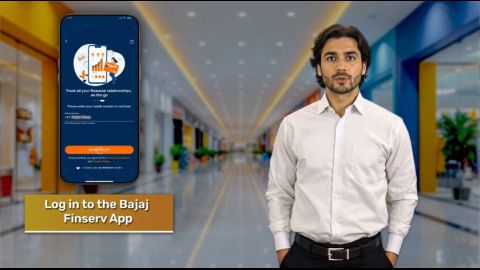
KYC के लिए बजाज फाइनेंस के साथ डिजिलॉकर डॉक्यूमेंट कैसे शेयर करें
बजाज फाइनेंस के साथ डिजिलॉकर से अपने सत्यापित क्रेडेंशियल शेयर करने से आपकी पहचान पूरी तरह से पेपरलेस और तुरंत हो जाती है.
अपनी एप्लीकेशन प्रोसेस के दौरान सुरक्षित एक्सेस को अधिकृत करने के लिए इन तेज़ चरणों का पालन करें:
- डिजिलॉकर KYC चुनें: बजाज फाइनेंस लोन या कार्ड एप्लीकेशन पोर्टल पर ऑनलाइन डिजिलॉकर विकल्प चुनें.
- अकाउंट प्रमाणित करें: अपना यूनीक आइडेंटिफिकेशन विवरण दर्ज करें और अपने डिजिटल लॉकर से जुड़े सुरक्षित पिन को दर्ज करें.
- OTP के माध्यम से जांच करें: अपने रजिस्टर्ड मोबाइल फोन पर सरकारी पोर्टल द्वारा भेजा गया समय-संवेदनशील सुरक्षा कोड दर्ज करें.
- सहमति दें: अनुरोध किए गए डॉक्यूमेंट को रिव्यू करें, जैसे कि आपका एड्रेस प्रूफ, और उन्हें सुरक्षित रूप से शेयर करने के लिए 'अनुमति दें' पर क्लिक करें.
पूरा होने के बाद, पोर्टल आपकी एप्लीकेशन को तुरंत अप्रूव करने के लिए प्रामाणिक डिजिटल फाइलें लाता है.
निष्कर्ष
डिजिलॉकर आपके डॉक्यूमेंट को ऑनलाइन सुरक्षित रूप से स्टोर और मैनेज करने के लिए एक आवश्यक टूल है. चाहे बजाज फाइनेंस लोन के लिए KYC सबमिशन को आसान बनाना हो या फिज़िकल कॉपी ले जाने की परेशानी को कम करना हो, डिजिलॉकर बेजोड़ सुविधा और दक्षता प्रदान करता है.
आज ही अपने फाइनेंशियल जीवन पर नियंत्रण रखें-DigiLocker के साथ अपने डॉक्यूमेंट व्यवस्थित करें और बजाज फाइनेंस की डिजिटल सेवाओं के साथ तेज़ लोन अप्रूवल का अनुभव करें.
डिजिटल बनने के लिए तैयार हैं? आसान एक्सेस और सुरक्षित स्टोरेज का लाभ उठाने के लिए अभी डिजिलॉकर में लॉग-इन करें और अपना आधार, PAN और अन्य प्रमुख डॉक्यूमेंट अपलोड करें.
उपयोगी डिजिलॉकर, फाइनेंशियल और सरकारी सेवा गाइड